If the lead is visible in Leadoo AI but didn’t reach your CRM, we need to consult the integration logs.
Error Notification Emails: Ensure the “Recipients” list on your integration points to a monitored inbox. Silent failures are the primary reason lost leads go unnoticed.
The Transactions View: This is your primary diagnostic tool inside the integration builder. It provides a step-by-step x-ray of data flowing through the integration. Always locate the first failing step in a transaction rather than just looking at the final error message.
Step 2: Figuring Out Delivery Problems
After confirming the lead you’re troubleshooting hasn’t created any logs you need to verify your foundational setup within the Leadoo AI platform. Most sync issues can be resolved right here.
Check the Activation Slider: Navigate to your integrations list. Is the integration toggled active? A saved-but-inactive integration is the most common reason for a failed sync.
Review Triggers & Conditions: Ensure your test lead actually meets the integration’s rules. If your integration is set to only pass leads with a specific “Sales” label, verify your test lead carries that exact label from the bot flow.
Verify Lead Conversion: Did the bot actually generate a complete lead? Check your Leadoo account to ensure the lead record exists before assuming the integration failed. Partial conversations that do not fulfill the bot’s lead criteria do not trigger standard lead delivery.
Step 3: Decoding Common Errors
When viewing the logs you can easily see whether a lead has successfully sent or failed.
Find more detail by clicking on the arrow on the right hand side and then the step showing the error.
If there is an error, you’ll see the full explanation and stage in the lead process that the error occurred.
In this example the error was caused by a mismatch in the integration value assigned to the label which needs to be identical to the value in your CRM. In the error it also clearly shows what the correct option should be.
Here are some other common errors and what causes them:
Error Code / Type
What It Means
How to Fix It
401 or 403 (Authentication)
Your CRM rejected the connection. The authorising user may have been deactivated, changed their password, or lost CRM permissions.
Click “Authenticate Now” from the erroring connector in the integration builder to re-authorise the connection. OR Click “Settings” > “Setup” to re-authorise.
400 or 422 (Validation)
Your CRM is rejecting the data format. Often, a required CRM field is empty, or a selected dropdown value (like a Pipeline Stage or Deal Owner) was deleted in the CRM.
Open the step settings. Ensure all required fields have a mapped fallback value. Double check that the label values mapped to any dropdowns are correct and amend if needed.
429 (Rate Limiting)
Your destination CRM’s API quota is temporarily exhausted. It cannot accept more data right now.
The system may attempt to retry automatically. However, you should manually sweep the transaction logs to confirm any delayed records eventually arrived safely.
Phase 4: Safe Testing & Go-Live
Once you’ve applied a fix, always validate the end-to-end flow.
Submit a Live Test: Generate a real test conversion through the live bot on your website using a distinctive email address.
Verify Destination: Log into your CRM and confirm the record was created with the correct owner, pipeline stage, mapped custom fields, and bot conversation notes attached.
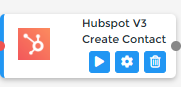
You can also submit single step tests in the Integration builder by clicking on the “play button”.
If you’re looking to send a lead through the whole integration process again, you can do so by selecting the leads you’d like to send from the Lead view, clicking on Resend and selecting Integrations.
Introduction to Leadoo AI’s In-App Integration Builder
Our integration builder is designed to empower your team to seamlessly sync Leadoo AI data with your third-party systems without writing a single line of code.
By automating the flow of information from lead conversion to system action, you can focus on what matters most: growing your business. This guide will walk you through the core concepts of mapping data and managing authentications so you can get up and running with confidence.
1. Connecting Your Accounts
Most connections use a secure ‘one-time login’ process. This means you log in safely once, and Leadoo AI can then work in the background without needing you to sign in every time.
Once you have authenticated using your CRM login details the integration can:
Create and update destination records (such as contacts, leads, or deals)—provided the authenticating user account possesses permission levels matching or exceeding the create/modify actions configured in the builder.
Read metadata (such as objects and fields) from your system
Access your system offline (without needing to log in and reauthenticate again)
After authenticating, some connectors will automatically fetch your software’s configuration and update the data mapping view to include any custom fields you have set up.
To begin the authentication process, simply locate your installed Connector within the Integration Builder and click Authenticate Now. A guided pop-up will lead you through the login and consent screens. Once you are redirected back to the Integration Builder, your connection is live and ready for the next step: defining your logic.
2. Choosing Triggers and Methods
The first step in setting up your integration is choosing a Trigger and a Method.
Think of the Trigger as the starting signal, it’s the event that kicks off the process. The right trigger depends on when you want your automation to run. Usually, this will be something like New Lead or New Company Profile.
The Method is the specific action you want to take next. Most methods have clear, easy-to-understand names, like Create Contact.
To create a simple connection—for example, automatically adding a new Leadoo lead into Salesforce, your setup would look like this:
New Lead => Create Lead
Sometimes, it is preferable to first query your system to avoid creating a duplicate of an already existing record. For Salesforce, the integration would look like this:
New Lead => Get Leads by Email => Create Lead
3. Mapping Data to Object Fields
Once your trigger is set, you need to tell the methods (e.g. Create Lead) where the lead data should go in your end system.
In the ‘Data Mapping’ view, you’ll need to match each data field from Leadoo to the correct field in your software.
4. Understanding Leadoo’s Source Fields
You can find all the fields on Leadoo’s Lead Object {here}. The Lead’s fields fall into a few types: input from the end user’s interaction with the bot, analytics data, labels, and variable information. I’ll go over some examples below, including environment-dependent fields. Labels and variables will not be present unless you’ve added them.
Field Name
Generated by
Type
Email
End user
Contact detail
First Name
End user
Contact detail
Last Name
End user
Contact detail
Phone
End user
Contact detail
First Touch Source
Leadoo Analytics
System value
Last Touch Source
Leadoo Analytics
System value
Budget
You (configured manually
Variable, string or number
Area of Interest
You (configured manually)
Label, enum/dropdown
While standard contact fields are straightforward, you can further enhance your integration by utilising Labels (tags) and Variables (var) for more granular control. Here is how they work:
Labels (like “Area of Interest”) act as a bridge. They have two parts: the label your users see (the “display value”) and a hidden code version that your system understands (the “integration value”). This hidden value is what we send to your CRM. Just make sure every label has a valid, recognisable value.
******Leadoo bot labels (such as “Area of Interest”) map frontend choices to downstream CRM properties:
Display Value: The user-facing text visible inside the bot conversation.
Integration Value: The underlying value passed in the lead payload (tag_ fields) to your destination CRM.
Validation Rule: Every active label must contain a valid integration value matching your CRM picklist options to prevent payload validation failures.
Variables are flexible containers that hold whatever data you assign to them. Before you use a variable, just double-check that the data type in Leadoo (like a number or text) matches the field type in your CRM. If they don’t match, the data might not transfer correctly.
Before you finalise your mapping, always double-check that the field types in your CRM match the source types in Leadoo. For instance, ensuring a “Number” variable in Leadoo is mapped to a “Numeric” field in your CRM (rather than a String) is crucial for maintaining data integrity and preventing integration errors.
In the Integration Builder, you can easily identify these elements: Labels are prefixed with “tag” and Variables with “var,” making it simple to build a robust, guided data flow for your business.
Leadoo Calendar Node: Live Booking vs Offline Scheduler
The Leadoo calendar node is a great way to create a sense of urgency within your visitors, leading to higher conversion rates and a better user experience. But how does it work?
The calendar node has two functions, first is a live calendar booking that syncs directly with your own calendar (Google, Outlook and Office365) so that prospects or customers can book in with directly. The second is a way for visitors to indicate a date and time that they would prefer, but it can also be great for asking about project start dates etc.
Live Booking Explained
Let’s start with the live booking feature but before you add the calendar node make sure that you have connected your calendar in the platform, you can do this from the My Account area. Here’s an article to help you get connected. Now you’ve got your calendar linked, you’re ready to go!
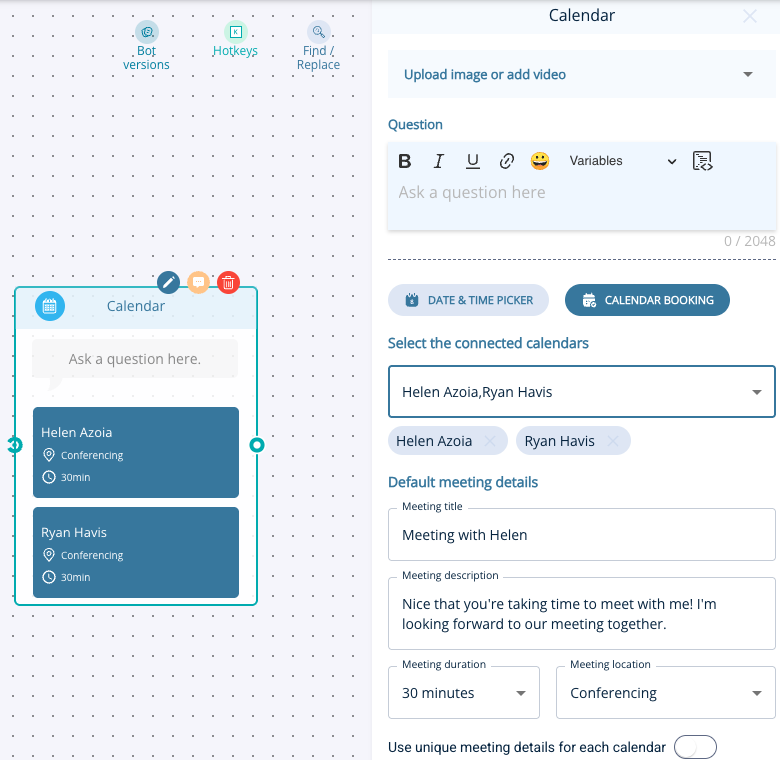
To use the live booking function, simply add a calendar node to the canva and click on calendar booking, you’ll notice that this changes the settings. From here you’ll need to select which calendar you’d like to connect (you can choose multiple) and update the meeting title and details if you wish. The title, description, duration and location will all be pulled in from the settings in the My Account area so you normally don’t need to change these!
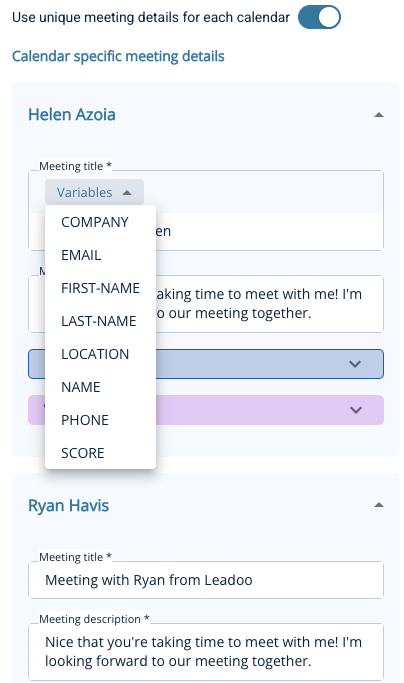
If you’re adding multiple calendars the default meeting details will use the first calendar you added but you can easily change this by toggling on the option to use unique meeting details for each calendar. This will allow you add another level of customisation for the meetings, you’ll be able to use variables to include personalisation options like name and company name etc.
Once you’ve done this you can preview the flow to make sure you’re happy! Here’s a few screenshots of what it will look it. You’ll see that the visitor is prompted to add their email to confirm the booking, but you can also ask for contact details before sending them to the calendar node and it won’t ask for their email again.
Using Offline Scheduler
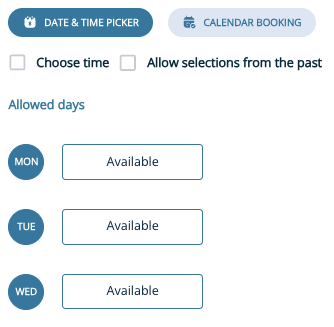
The other option when adding a calendar node is to use the offline scheduler which is essentially a date and time picker for the visitor to select. This is great when asking for times they prefer to the contacted, when their project is starting or when they could start a new job.
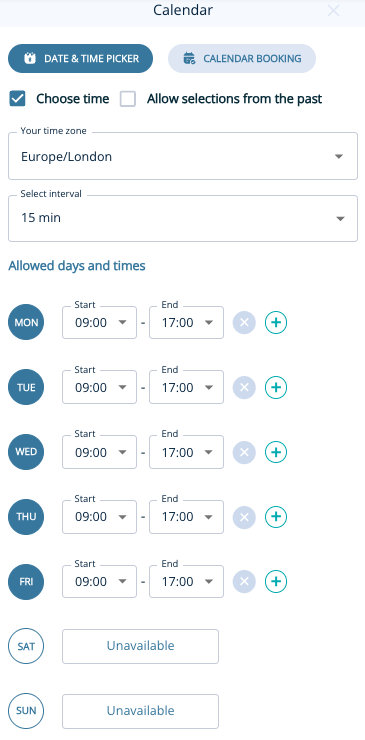
To get started you’ll need to decide on whether or not they can pick a time as well as a date. If you allow a time to be select you can customise the availablity to create set windows. For example you can allow 9am – 5pm everyday or create certain windows of availability on set days, check out the screenshots below for some inspiration.
If you’ve chosen to not allow a time to be selected, you’ll simply need to decide on which days you wish to be available. Leadoo won’t track any users by default, only after cookie consent has been given by the end-user.
You’ll notice that with this option the visitor won’t need to give their email address to confirm because they are not booking directly into you calendar, so it’s generally a good idea to ask for their details before the calendar node!
Using Leadoo to Retarget Your Most Interested Prospects
Leadoo AI isn’t just about creating super engaging bots to activate your website visitors! Oh no, it’s much more than that. Did you know that we help you identify anonymous website visitors? Using our unique tracking script we can identify visitors to your website and which company they belong to!
Why should you use retargeting in your marketing campaigns?
“The ability to reconnect with the majority of people who weren’t ready to convert upon their first interaction with your brand is what makes retargeting the most powerful piece of your digital marketing campaign.” – Forbes
Using the data you’ll get from Leadoo’s Company Identification tool is a great way to improve your campaigns and specifically digital ads, which can be an expensive investment! By retargeting an already engaged audience you should see:
Increased conversion rates
Improved Customer Retention & Loyalty
Higher Return on Investment
Lower Cost Per Acquisition
Improved Click-Through Rates
How to use the Company Identification Data in Leadoo
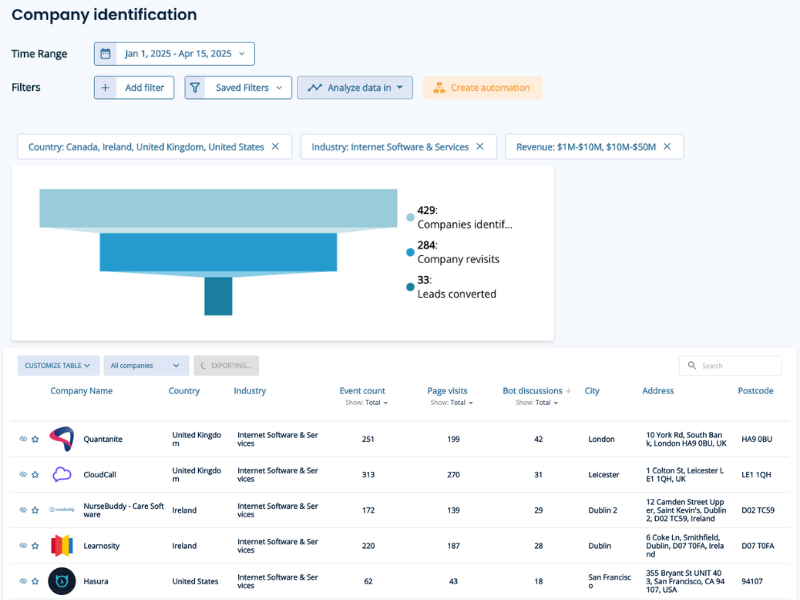
It couldn’t be easier, the hard work is all done in the background by having the Leadoo tracking script on your website. This will start tracking your anonymous website visitors and identify the companies they belong too! Now all you have to do is create a target list for your campaigns.
By creating persona-specific filters, such as company size, industry, which pages they’ve visited, etc., you can create a targeted list of potential prospects. Not only have these prospects visited your website, but you now have a clearer picture of who they are and what they are interested in.
Export Company Identification data from Leadoo
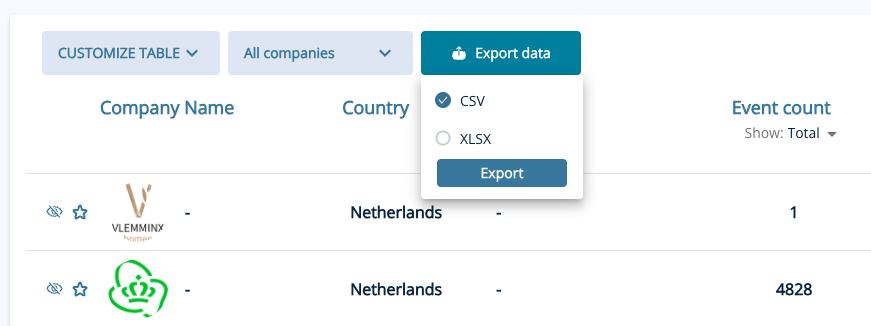
Once you’ve created your filters, it’s time to export the data. By clicking on the export button it will automatically select all companies within your chosen filter. You can also choose either a CSV or XLSX format.
Once it’s ready to download you’ll be prompted to download now, the time for the file to be processed will vary depending on how many companies are in your filters.
Creating Customer Lists in LinkedIn
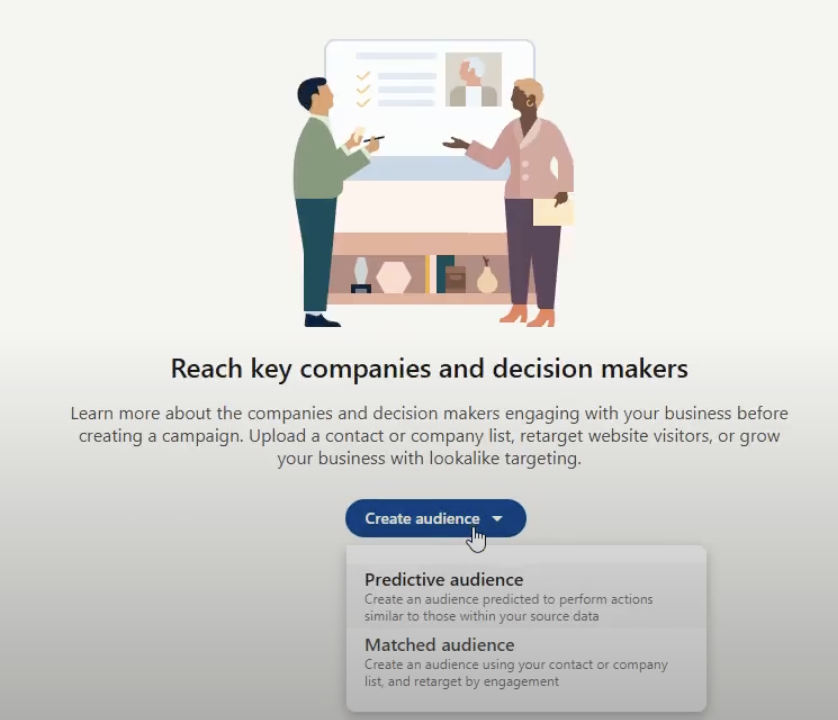
To add a customer list in LinkedIn, you’ll be using the LinkedIn Ads Campaign Manager for uploading and creating Matched Audiences. This involves creating a new audience, selecting “Matched Audience” and then “Company” and finally uploading your list after downloading the appropriate template. Here’s a step-by-step breakdown:
Log in to your LinkedIn account and navigate to the Campaign Manager.
Create a New Audience – Under the “Plan” section, select “Audiences” and then click “Create audience”.
Select “Matched Audience” as the audience type.
Choose either “Company” under the “Source” section.
Provide a name for your new audience.
Select either “Company list”
Download the company list template from the dropdown menu. This will make sure that the data is in the correct format to be used.
Add your customer data to the downloaded template, following LinkedIn’s requirements.
Once you’ve filled the template, return to the Campaign Manager and upload the saved file.
LinkedIn will process your list, which can take up to 48 hours, and you can then use the created audience in your ads.
Exit intent is a way of triggering the Visual Bot to capture visitors who are just about to leave your site/page which creates great opportunities for lead capture. We tend to see success with this type of trigger when you’re offering something of real value to your visitors, e.g. brochure or case study download, event registration or everyone’s favourite, a discount!
With exit intent triggering you can:
Turn any Visualbot into a pop-up
Trigger by time-on-page and attempted exit
Avoid abandonment and capitalise on a last chance to engage
Let’s Get Started!
First things first, you’ll need a visual bot to use this feature. You can either build one from scratch or use an existing one. In fact, if you’ve already got a product finder or event registration page but it’s static on the page then duplicating that and deploying it as a visual bot has the potential to generate some quick wins!
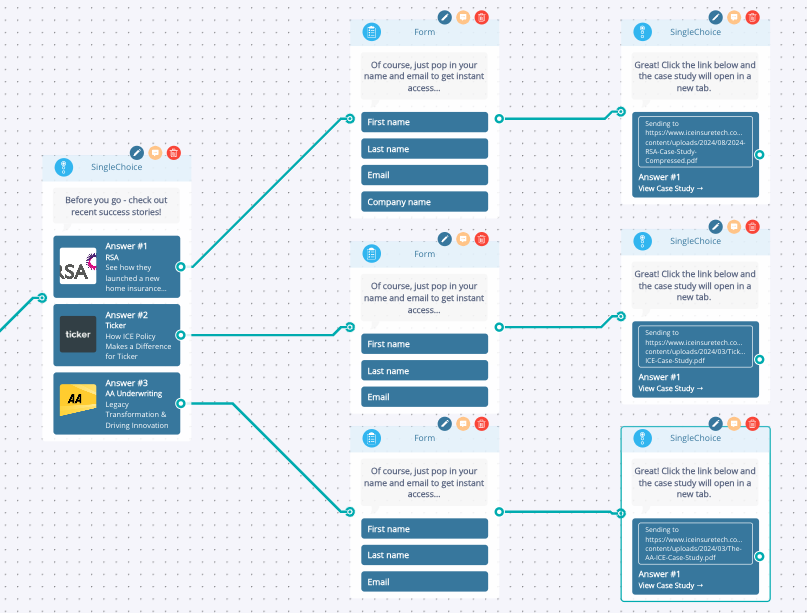
Here we have a simple lead capture visual bot that’s offering visitors the chance to download the latest case studies before they leave. This is a good strategy if your visitors are still in the decision making phase.
Before we look at the exit intent trigger settings we need to make sure we’ve got the frame colour setup correctly. With exit intent’s the frame basically acts as an overlay on your website which helps the bot to stand out. We recommend using one of your brand colours and setting the opacity to around 60%
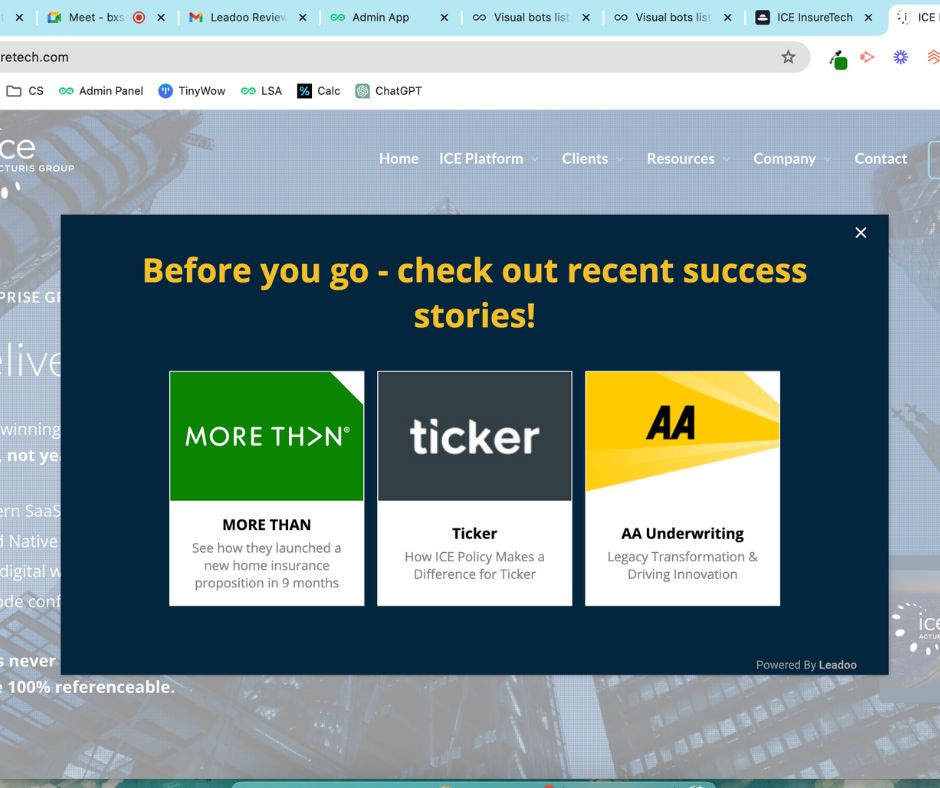
Here’s a nice client example to show you how this will look when it’s live!
How To Trigger The Exit Intent
Now it’s time to set the exit intent live! Assuming you have the Leadoo tracking script on your site then this will be very quick and easy because the exit intent is triggered by the same logic as the chatbot. If you don’t have the tracking script on your site yet (why not?!) then you can follow this video example of adding it to a WordPress site.
Once you’re in the triggers menu select the By Exit Intent option to get started. From here you’ll need to decide on how long to wait before triggering the exit intent, for some insight into this you should check out the Website Analytics area of the platform to see how long visitors stay on certain pages. We would recommend about half of the average time spent, e.g; if visitors tend to stay on your site for 4 minutes it would be a good idea to trigger the exit intent bot after 2 minutes.
Next up is where you want the exit intent to be shown, simply copy and paste in the URL of the page(s) that you would like it to appear on. This section works in the same way as our chatbot triggers, which you can learn more about here.
Let’s run through a few examples.
1. Adding the exit intent to your pricing page after 2 minutes. This is great for offering discounts and or showcasing ROI calculators. Simply add in the pricing URL and set the minimum time spent to 120s.
2. Adding the exit intent to all blog pages – this is great for capturing brochure download leads as the visitor will be in the research phase. In this example you’ll notice we’ve used some asterixis when adding a URL, using them allows you to add the exit intent to multiple pages without having to manually add them all. By adding /*blog* the exit intent will show on all our blog pages!
Hope you found this useful, why not get stuck in and try it yourself! Don’t forget if you need any advice or help just reach out to your Account Manager.
Leadoo AI Support:
Dropdown Node: How and when to use it?
Using the dropdown node is a great way to offer your visitors a wide selection of options to choose from in a very user friendly way. This node is great for when the single choice option is getting a little cluttered, generally we would recommend for options of 6 or more.
How To Set It Up
Let’s start by building the dropdown list, which you can either do directly in the bot builder or in the general bot settings area.
General Bot Settings
Under the Conversion Kit menu you’ll find general bot settings and dropdowns is the first option. From here you can manually add your dropdown list, in the example below I’ve chosen a country list, or if you already have a list you can upload it using the quick import button. To make sure you’ve got your list set up properly, you can use the sample file to get started!
You’ll notice a few headers here, so let’s explain those:
Answer choice – this is what your visitors will see as an option to select
Label – they are great for tagging a visitor’s answer so you can use it for lead.notification emails and creating personalised pathways. You can read more about labels here and I’ll share an example later on in the article.
E-mail notify – use this to send lead emails to external partners when a certain option is selected, great for promoting resellers etc.
Creating Dropdowns in the Bot Builder
If you prefer to build your dropdowns on the fly then that’s great! Simply add the dropdown node to the canvas and instead of selecting a dropdown list, click ‘create new’.
From here you’ll give your dropdown a name and then add the options one by one and add any relevant labels.
Don’t forget to click either update list or save as new list when adding items this way!
Adding a Dropdown to a Bot Journey
Now it’s time to think about when to use the dropdown option. First of all you can either have it as a standalone node or as part of the form node.
We would suggest using it as a separate node if you’d like to create a more conversational lead capture journey but adding it to the form is always good, just keep in mind that too many questions at once can be off putting!
An Example of the Dropdown Node
Enable dynamic suggestions by toggling them on in the AI node. Once activated, the AI will present them after each response. There’s an additional prompt field where you can guide the AI on how to handle these dynamic suggestions.
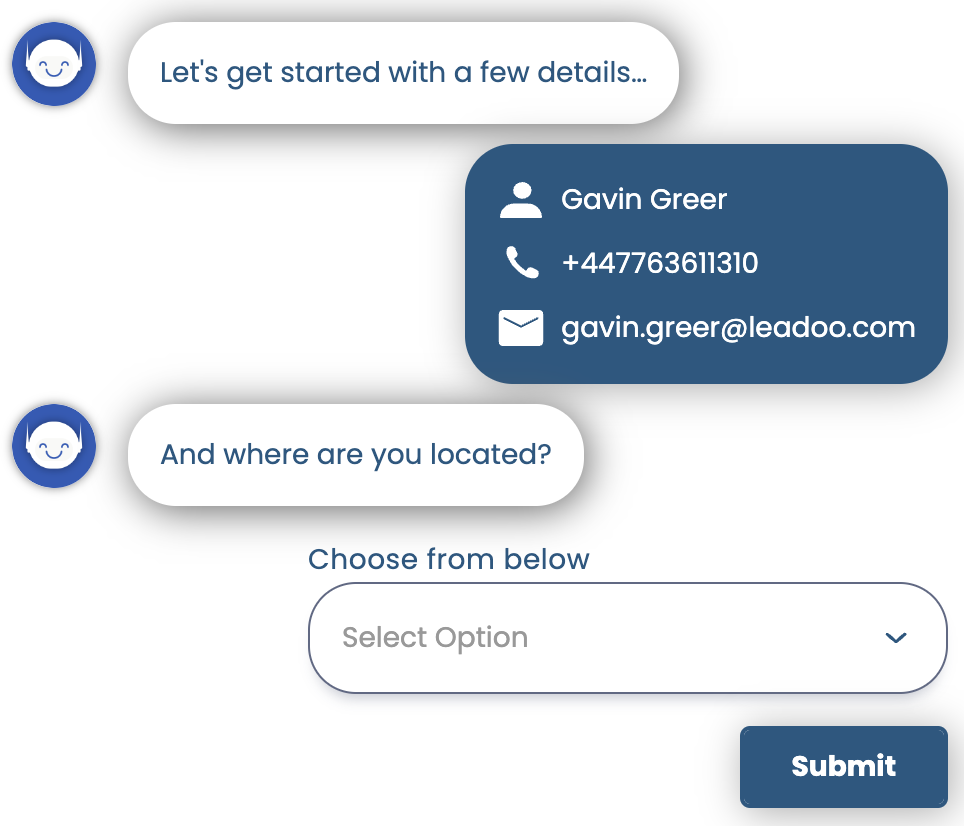
In the example above, we’ve created a conversational pathway to gather some contact details and the visitors location, which we will then use to generate calendar booking for the relevant Business Development Representative.
This is a simple and effective way to use a dropdown list and labels to create a personalised flow which helps filter leads to your team.
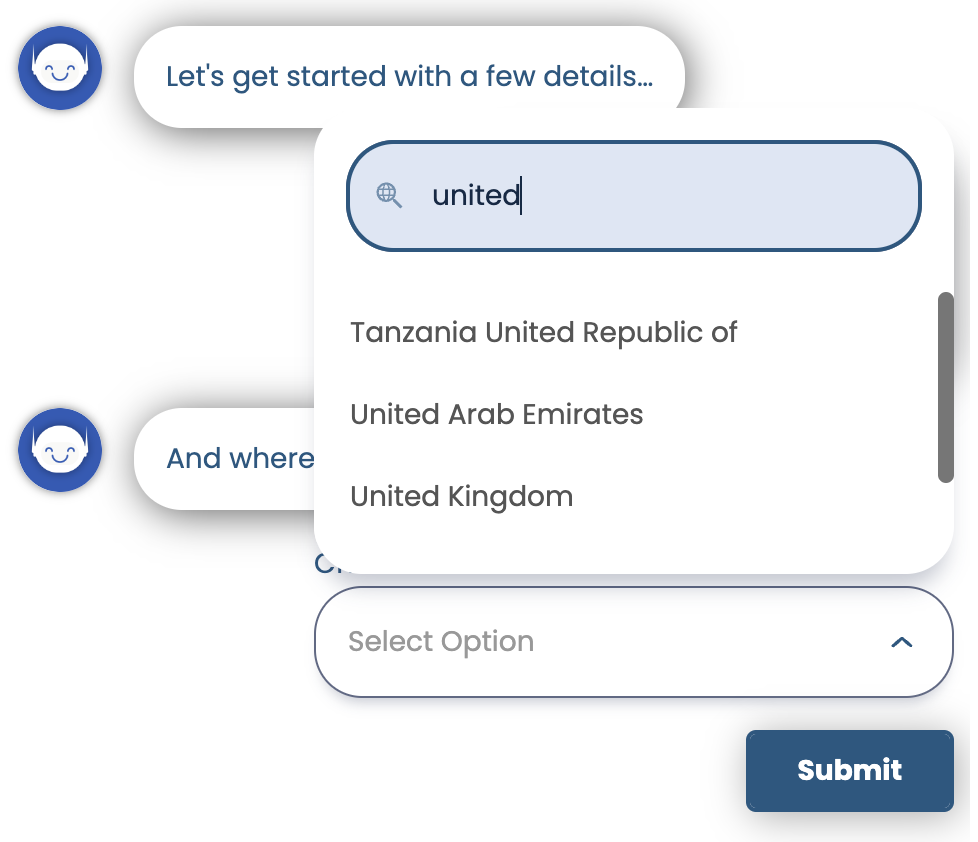
As you can see we ask “And where are you located” as a dropdown, once they answer this it goes into an advanced logic router. This router is checking which label has been applied based on the country of residence that the visitor selected and from there it will send them to a calendar booking with the BDR for that region!
Hope you found this useful, why not get stuck in and try it yourself! Don’t forget if you need any advice or help just reach out to your Account Manager.