KNOWLEDGE
Case StudiesBlogsEventsSupport & Starting
Support Articles & HubSupport Videos (Youtube)Try Leadoo Free (Leadoo Lite)Partners & Careers
PartnershipsCareersSecurity & Privacy
Security at Leadoo AIGeneral Terms & ConditionsData & GDPRKNOWLEDGE
Case StudiesBlogsEventsSupport & Starting
Support Articles & HubSupport Videos (Youtube)Try Leadoo Free (Leadoo Lite)Partners & Careers
PartnershipsCareersSecurity & Privacy
Security at Leadoo AIGeneral Terms & ConditionsData & GDPR
Leadoo Sales Assistant is your own relentless personal assistant who saves you time and helps close more deals. You can have a free Leadoo Sales Assistant that is not linked to your Leadoo paid subscription. You can register for free here: Register free
If you want it to be part of your existing subscription contact your own Customer Success Manager.
After signing up start by syncing your calendar to Leadoo. You can find instructions to it here: How to sync your calendar with Leadoo.
Once you’ve synced your calendar you can move on to creating your Sales Assistant. Move to Sales Assistant page through left hand side navigation and click +BUILD NEW PAGE.
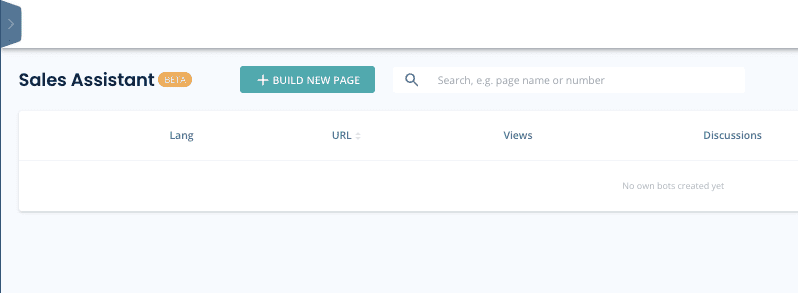
After that fill in the basic information and style your theme settings.
Once you’ve got the looks right click save changes at the bottom of the page. Then you can start building your Sales Assistant bot.
At the bottom of the page you can ”EDIT BOT”. From there you’ll move to the bot builder.
Useful articles:

After you’re done building your bot, test that everything works with your Sales Assistant in a live environment.
If you’ve used Booking Node on your bot, make sure to test your Calendar sync by booking a test meeting to yourself.
You can find the link to your Sales Assistant from the top right corner of the page.


Contact your Customer Success Manager at Leadoo at [email protected]
BannerBots will display on all major ad networks that support HTML5, including:
You can also download and distribute the BannerBot files to any other networks that support Standard HTML5.
More supported networks are being added all the time!
When creating a brand new banner in Leadoo Advertising, you can begin by choosing a suggested size or customise your own size of banner. All the templates and previous banners that you build are saved here in your banner design gallery, so there’s no need to start from scratch each time!
Once you have decided on your visuals, remember to reserve a space for a bot conversation. This is, after all, the heart of the interactive display ad!
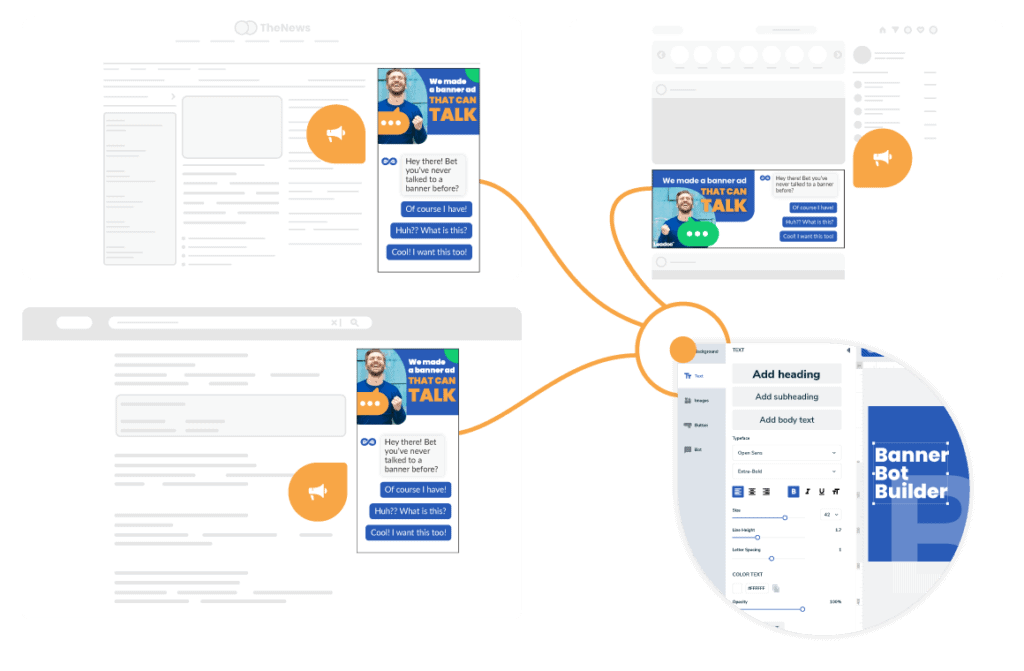
Make sure the space is large enough for the bot to look good on display and be user friendly (e.g. make sure the questions and responses aren’t cut off or move too quickly away from the screen due to large sentences).
When you’ve finished make sure you save the banner design. When saving, there is also a ‘Click Tag’ field. An essential advantage of using the ClickTag is the fact that it allows the ad-serving network to gain insights regarding the number of clicks you received for your banner, and from which sites were those clicks received.
We highly recommend you create your own UTM tags. This means that when the viewer of the banner clicks outside the add the landing page you defined here will open up in a separate tab.
Once your design is saved, the banner will appear in the drafts folder.
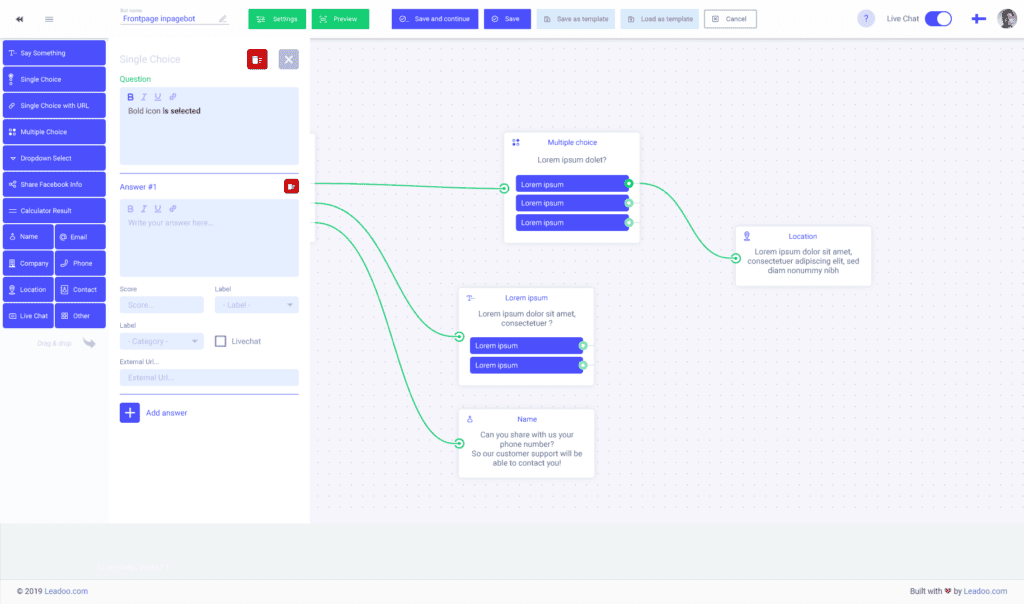
Time to give a soul and voice to that banner! If you don’t yet have a suitable bot conversation thread built for your banner, follow the path Bots > Inpagebots > Visual (Beta) to build the conversation paths for your banner with Leadoo’s easy and intuitive visual bot builder.
We recommend keeping the bot dialogues meant for banners as straightforward as possible. The attention span of an average person on a media site is not very long, so don’t bore them off with a long conversation about the weather!
Make your banner truly interactive with these steps. Start by following the path Advertising > BannerBot > Create New.
What is left for you is to download the BannerBot file and add it to your ad networks of choice. Download the file by clicking the three dots next to your saved BannerBot. Currently, Leadoo Advertising supports AdForm, AppNexus and standard HTML5 formats. More formats will be added soon, so stay tuned!
Once you have chosen which ad networks you want to send your BannerBot through and downloaded the HTML5 file for distributing it, you’re all done! Proceed to creating your ad campaigns in your ad network of choice as normal.
Note! The interactive BannerBot feature is a Leadoo 2.0 feature, so make sure you have added the feature to your contract before you begin.
Don’t have Leadoo Advertising in your contract yet?
Contact our Team to Get Started
At Leadoo we take tracking seriously from a legal and personal privacy point of view. We understand that businesses want to maximize their advertising spend and thus targeting and have built in features that make this better and easier from a business point of view. But we also appreciate and put the individual users at center stage when designing our tools. Leadoo has thus built in support for completely airgapping our conversion tools (e.g. bots and visual forms) from the analytics tracking and e.g. google tag manager integrations. As a design principle we build relationships with one customer at a time and that customer decides what to do with our tooling. We do not build global user profiles which would enable sharing or selling of user data across customers, unlike many of our competitors.
This page is built as a way to communicate that from a technical point of view and to help you make yourself compliant. You will among others find what to include in your CMP (Consent Management Platform or “cookie popup”).
As third-party cookies are being phased out by most browsers we no longer rely on them. In addition, it’s also common for users to periodically empty their browser’s cache. Even if you had a cookie popup and your customers clicked “I approve” their iPhone would not install the 3rd party cookie – and you wouldn’t be able to follow them. Even if they approved it. Cookies are dead. Thus cookies are no longer a technical measure to track users. But from a legal point of view, we include all ways of enabling tracking into our design of “cookie support” for our customers.
Whenever we talk about cookies, we include eTags, sessions storages, IP address tracking, hashing of various metrics and behaviors (such as use agents). This does not remove the fact that user agents, IP addresses etc are used for technically enabling any kind of web traffic, including using Leadoo’s tooling – but we do not use these for creating profiles. All technologies to create profiles are listed below.
Leadoo is designed to completely separate the tooling into 1) bots that behave like and replace forms and 2) analytics that is made for tracking. The latter is most commonly (depending on local legislation) put behind a cookie popup, or CMP.
ETags are a way to track different browsers, similar to how cookies are used. Technically the implementation details are a bit different. ETags are built for recognizing if the web browser already has an asset (such as an image or video) so that the server doesn’t need to send it over the wire again.
In practice, eTags are used in a similar way to cookies to fingerprint a user and to know that a browser that visits the site right now is the same one that visited the site a week ago.
Leadoo also uses session storage, which is a storage in the browser.
Functional cookies below are things that don’t track you but are needed for the bots. Analytical cookies below are things that can be used for tracking users.
FUNCTIONAL
session storage “ld_session_origin“ – The ld_session_origin serves as a reference to the domain where the current session initiated. It’s used to recognise when there’s a domain shift and determine if a new session should begin.
session storage “ld_al_exp” – Session expiry timestamp.
local storage “ld_bot_consent” – Set after the user has interacted with the bot. After this Leadoo Analytics may be activated.
ld_BOTID_open_time where BOTID is the numerical ID of a bot (used for tracking open visual bot modals were opened)
session storage “ld_env” – storing UTM parameters and referrer, for the purpose of managing referrals across pages.
ANALYTICAL
Etag “iapi.leadoo.com” – eTags is used for connecting one visitor session with the next. (Technically all websites always use “hundreds” of etags)
local storage “Id_id” – Set by Leadoo Analytics for detecting device being used
session storage “ld_co” – unique id of the company profile identified by analytics script (for the current session only).
session storage “ld_cinf” – Basic information about the company, without identifiable data, resolved during company identification process.
session storage “ld_session_id” – Application session to distinguish client server connections from each other.
ld_wse – The ld_wse is a buffer for website events, designed to temporarily collect user actions such as link clicks and form submissions. When a user clicks on a link, they are immediately redirected to the new page. On the second page visit, the system attempts to send any buffered events that weren’t previously sent. This ensures that all user interactions are captured and processed for analytics.
Other
You may encounter other cookies and such as well like
cookie “__cfduid” – This relates to content delivery network called Cloudflare. See Understanding the Cloudflare Cookies
Cookie “ga” and similarly – See Google Analytics and how they use cookies. (if using Google Tag Manager)
Leadoo is fully GDPR compliant. In addition to complying with the regulation ourselves, it is important for us to help our customers with their compliance efforts. This goal is achieved through training, instruction, and technical development of our software. See our full GDPR statement here.
In essence, you can decide for yourself how to use Leadoo – you can use it in fully anonymous mode, in which case no marketing tracking is done. Most often, however, you will want to use it for marketing and analytics purposes – just like you’re using Google Analytics today – and this requires permission from the user. Leadoo bots can do this for you, or your own website can ask for consent and hand over that information to Leadoo.
When you start using the Leadoo service, your customer success manager will help you ensure that your website complies with GDPR.
For our own site, Leadoo.com, Leadoo operates as both the Processor and Controller for the data. However, for our customer’s sites, we only operate as the Processor. To understand what this means you can go to the specific explanation in our Privacy Policy here.
If you want to know more in-depth how we keep your data safe read this.
In short, reverse IP lookup, is what happens when a user visits your site from a business IP address. Leadoo then identifies the company name, revenue, size, industry and more firmographic information that enriches your user database (i.e. Leadoo’s Smart Customer profiles).
Technically the following is what happens: First, your customer’s web browser calls your website’s server and asks for a page. Next, the server can look up the owner of the IP address either by using public registers or private IP address databases. Because the IP will be registered to a business, it also means you can see which companies have visited your site. So even if the individual user keeps their identity withheld, you know what and how many times a company has visited your site.
If you’d like a fuller understanding of how it works and how we use it, then you can read about it in more detail from our blog.
When you are either an Owner-user or Admin-user, you can access your Leadoo backend’s settings.
From settings, you need to go to “General” and then to the tab “Other”. The first field you see is “Privacy Policy link” and you can add your own privacy policy link there. This will show up as a “By clicking or typing you accept our Terms of Service”. Terms of Service -part will be a hyperlink to your privacy policy site.
If you happen to have different privacy policies for recruitment and for other purposes, you can choose “Bot specific privacy policy” to be on “Yes” and then you’ll have the privacy policy link field in each of your bots’ settings.
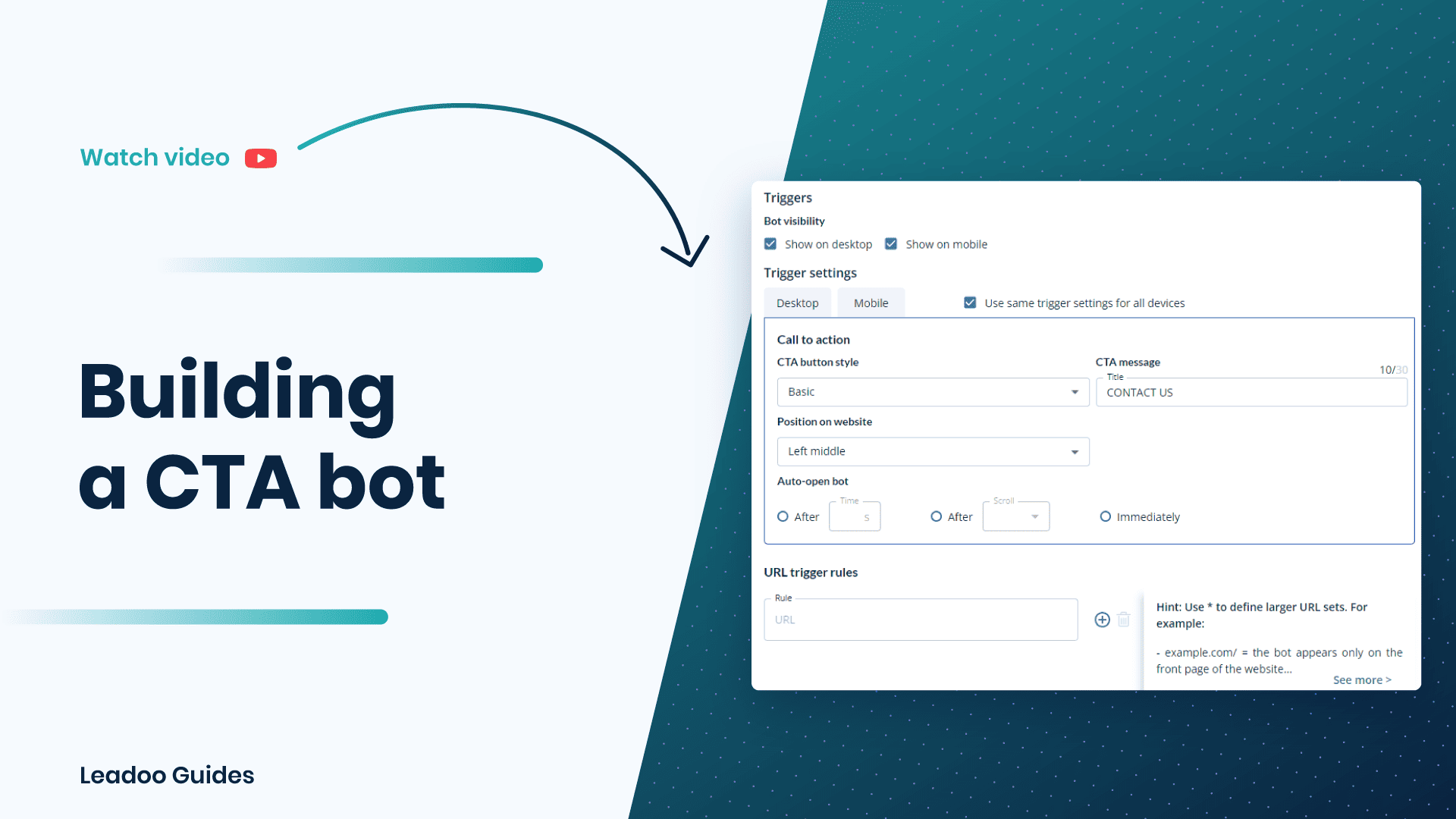
Yes, it is but it must be GDPR compliant. This means that the people and organizations with access and the networks under which the data is stored are both secure, confidential, and essential for providing your services. You also need to let your users know if their data goes into 3rd party systems.
Below is an extract from our own GDPR statement which should help understand the rules on data privacy:
“We may process your data on a several different basis: based on your consent, based on our legitimate interests related to such data such as promoting and developing our services and processing contact requests and applications sent to us, to fulfill and execute a contract and to meet legal obligations. The legal basis for data on our customer’s sites is fully the responsibility of our customers.”

