User Types and How to Create Roles with Custom Permissions
Within your Leadoo AI account you’ll find four default user types you can choose from along with the option to create custom roles for greater flexibility and control.
Owner
By default, the owner of your account will be set as the person who signed the contract. There can only be one owner so if you need this to be updated please contact your Onboarding or Customer Success Manager.
Owners will have full admin access.
Admin
You can have multiple admins on your account. They will have access to everything in the platform included in your subscription.
Member
This will give users access to most of the platform but with limited access to update settings and add users to the account. This includes:
Conversion Insights: Access Bot insights, Company identification, Livechat insights, Source insights and Journey insights
You may want to create custom roles for members of your team to give them access to the areas they need whilst restricting certain parts of the platform.
For example, you might want the sales team to have access to some of the Conversion Insights and Leads area along with Live Chat.
2. Select the areas you want that role to have access to. Make sure you tick the box for “Access to main dashboard’ otherwise, the users may see a blank page when they log in.
Click ‘Invite member’ and select your new role from the list.
And that’s it! You can update roles and permissions as an Admin at any time.
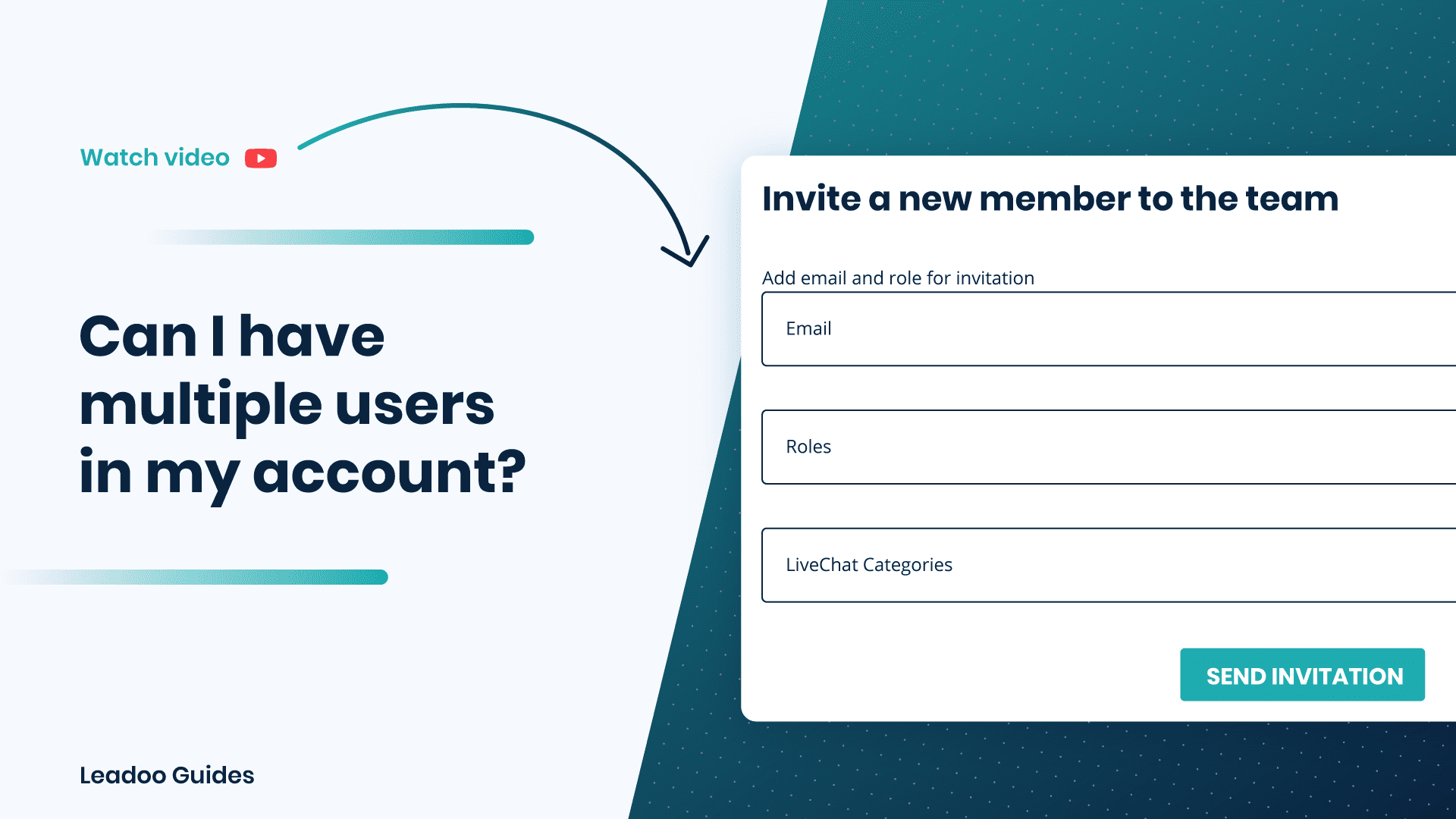
Yes, and this is very easy to do. Just go to the option bar on the left. Scroll down to ‘Team’ and then select. Then if you are an administrator you will see an ‘Invite Member’ option at the top right. Simply click on this and then fill out the information fields.
There are different access options you can allocate to new team members. Most commonly, you allow ‘Admin’ access, which allows the person to change settings. However, particularly in big teams, you may only grant ‘Member’ access, allowing them to create and manage bots, or even ‘Agent’ access, which means they can only pick up and respond to LiveChat.
After you have selected the user category then click ‘send invitation’ and your new user will receive an email invitation to your Leadoo account with instructions on how to confirm and create their own profile.
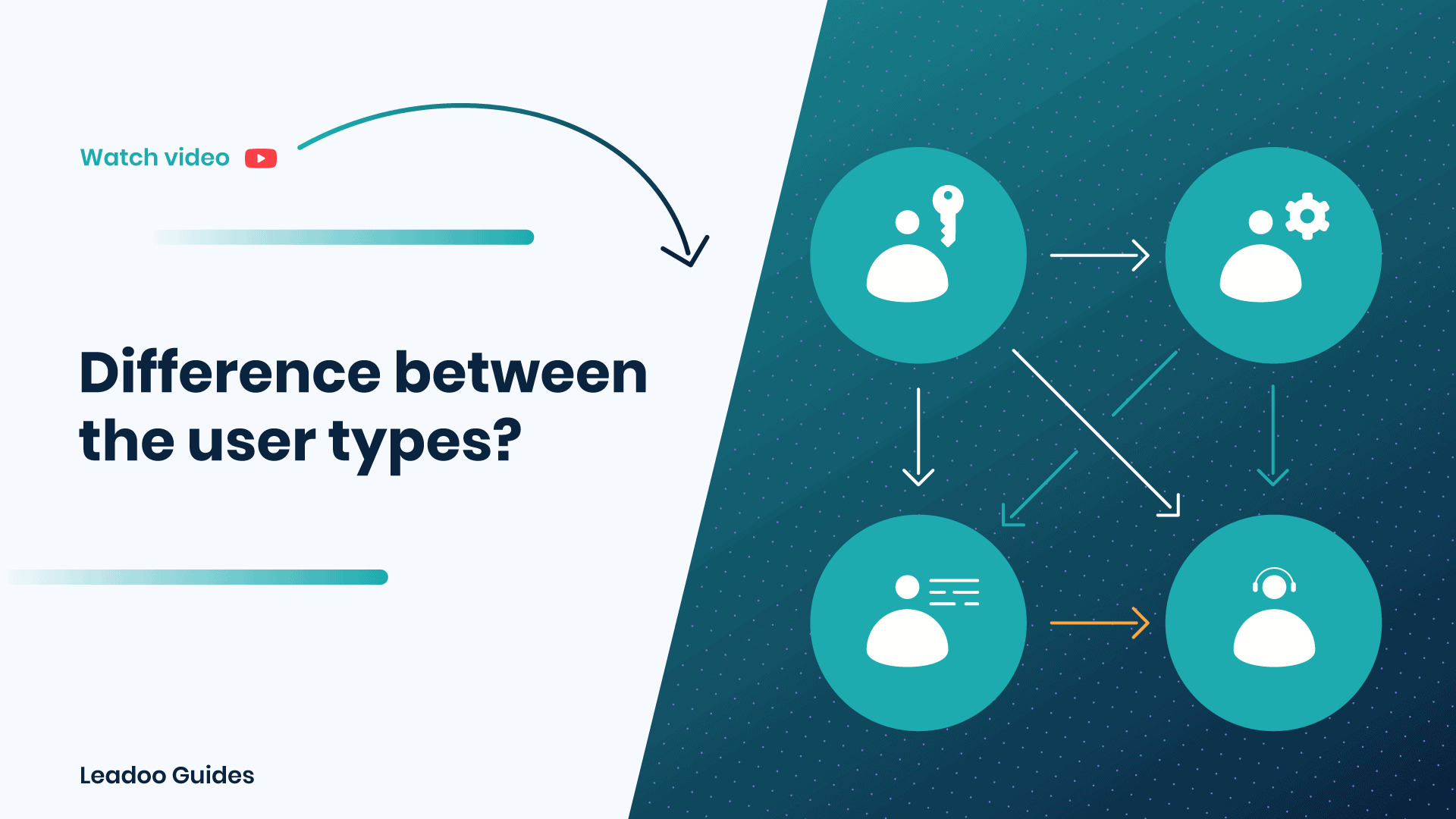
There can be only one owner in your Leadoo backend. This is the person who has signed your contract. This person has access to the whole platform, can view, create and edit the bots, can view all the analytics and profiles, can edit settings and bot UIs and can manage users. They can also use Live Chat.
Admin
There can be multiple admins in your Leadoo backend. They have access to the whole platform, can view, create and edit the bots, can view all the analytics and profiles, can edit settings and bot UIs and can manage users. They can also use Live Chat.
Member
There can be multiple member-level users in your Leadoo backend. They have access to edit and create the bots and view the bot analytics. They can also use Live Chat. They cannot access platform settings, edit bot UIs or manage other users.
This includes:
Conversion Insights: Access Bot insights, Company identification, Livechat insights, Source insights and Journey insights
Agent-level users have only access to the messaging platform (Live Chat). They cannot view or access other features of the platform.
Custom User Type
Read this article on how to create custom user types for greater control.
Leadoo AI Support:
How To Invite and Manage Leadoo AI Team Members
It’s easy to add new members of your team on Leadoo AI. You can also allocate different roles to them depending on their responsibilities!
This way, you have complete flexibility to decide who gets to respond to live chats and who should focus on tasks such as Chatbot development or monitoring reports.
Read this article to find out more about different user types and how to create custom roles.
How To Add Teammates To Leadoo AI?
1) Open the “Team” page from the Leadoo Admin panel
2) Click the “Invite Member” button
3) Add the new user’s email address. Define both their role and if the user is going to be a Livechat agent, make sure you select which category they should have access to.
4) Manage your members from the team view by seeing who is online and which categories and roles each member belongs to.
Leadoo AI Support:
How to add agents to Live Chat
To start using Leadoo Live Chat, you want to first add your agents as team members.
To add live chat agents, click the “Team” button.
Then select “Invite member”.
You want to add the email addresses of each new live chat agent separately.
Then select “Agent” from the dropdown list. This means that that person will only be able to access Live Chat in your account, and no other areas.
You also want to make sure that you select Live Chat category that the agents should have access to. Once you’ve done this, you can send invitation. That person will then receive a notification in their email account to activate. Then they’ll be able to start using Live Chat as an agent.