

Leadoo AI Support:
Integration Troubleshooting Guide
Step 1: Finding the Error in the Logs
If the lead is visible in Leadoo AI but didn’t reach your CRM, we need to consult the integration logs.
- Error Notification Emails: Ensure the “Recipients” list on your integration points to a monitored inbox. Silent failures are the primary reason lost leads go unnoticed.
- The Logs page: Navigate to https://app.leadoo.com/integrations/logs to see the logs for the last 30 days.
- The Transactions View: This is your primary diagnostic tool inside the integration builder. It provides a step-by-step x-ray of data flowing through the integration. Always locate the first failing step in a transaction rather than just looking at the final error message.
Step 2: Figuring Out Delivery Problems
After confirming the lead you’re troubleshooting hasn’t created any logs you need to verify your foundational setup within the Leadoo AI platform. Most sync issues can be resolved right here.
- Check the Activation Slider: Navigate to your integrations list. Is the integration toggled active? A saved-but-inactive integration is the most common reason for a failed sync.
- Review Triggers & Conditions: Ensure your test lead actually meets the integration’s rules. If your integration is set to only pass leads with a specific “Sales” label, verify your test lead carries that exact label from the bot flow.
- Verify Lead Conversion: Did the bot actually generate a complete lead? Check your Leadoo account to ensure the lead record exists before assuming the integration failed. Partial conversations that do not fulfill the bot’s lead criteria do not trigger standard lead delivery.
Step 3: Decoding Common Errors
When viewing the logs you can easily see whether a lead has successfully sent or failed.

Find more detail by clicking on the arrow on the right hand side and then the step showing the error.
If there is an error, you’ll see the full explanation and stage in the lead process that the error occurred.

In this example the error was caused by a mismatch in the integration value assigned to the label which needs to be identical to the value in your CRM. In the error it also clearly shows what the correct option should be.
This is one of the most common errors. You can update these values here – https://app.leadoo.com/conversion-kit/settings/labels.

Here are some other common errors and what causes them:
| Error Code / Type | What It Means | How to Fix It |
|---|---|---|
| 401 or 403 (Authentication) | Your CRM rejected the connection. The authorising user may have been deactivated, changed their password, or lost CRM permissions. | Click “Authenticate Now” from the erroring connector in the integration builder to re-authorise the connection. OR Click “Settings” > “Setup” to re-authorise. |
| 400 or 422 (Validation) | Your CRM is rejecting the data format. Often, a required CRM field is empty, or a selected dropdown value (like a Pipeline Stage or Deal Owner) was deleted in the CRM. | Open the step settings. Ensure all required fields have a mapped fallback value. Double check that the label values mapped to any dropdowns are correct and amend if needed. |
| 429 (Rate Limiting) | Your destination CRM’s API quota is temporarily exhausted. It cannot accept more data right now. | The system may attempt to retry automatically. However, you should manually sweep the transaction logs to confirm any delayed records eventually arrived safely. |
Phase 4: Safe Testing & Go-Live
Once you’ve applied a fix, always validate the end-to-end flow.
- Submit a Live Test: Generate a real test conversion through the live bot on your website using a distinctive email address.
- Verify Destination: Log into your CRM and confirm the record was created with the correct owner, pipeline stage, mapped custom fields, and bot conversation notes attached.
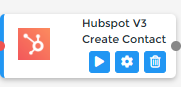
You can also submit single step tests in the Integration builder by clicking on the “play button”.
If you’re looking to send a lead through the whole integration process again, you can do so by selecting the leads you’d like to send from the Lead view, clicking on Resend and selecting Integrations.
https://app.leadoo.com/leads/browse
