KNOWLEDGE
Case StudiesBlogsEventsSupport & Starting
Support Articles & HubSupport Videos (Youtube)Try Leadoo Free (Leadoo Lite)Partners & Careers
PartnershipsCareersSecurity & Privacy
Security at Leadoo AIGeneral Terms & ConditionsData & GDPRKNOWLEDGE
Case StudiesBlogsEventsSupport & Starting
Support Articles & HubSupport Videos (Youtube)Try Leadoo Free (Leadoo Lite)Partners & Careers
PartnershipsCareersSecurity & Privacy
Security at Leadoo AIGeneral Terms & ConditionsData & GDPRLeadoo AI elevates your existing chatbots with real-time, intelligent conversations. It’s trained on your website and documents, enabling it to instantly answer customer questions about your products or services—particularly in situations where manual mapping would be inefficient. Whether visitors are exploring if your offering suits their needs or looking for a specific product, Leadoo AI provides relevant, tailored responses.
It enhances structured journeys and supports more open-ended interactions, letting users navigate freely. Leadoo AI strikes the perfect balance between automation and live chatbot interaction, ensuring a smooth transition to human support when needed, improving user experience and increasing conversions.
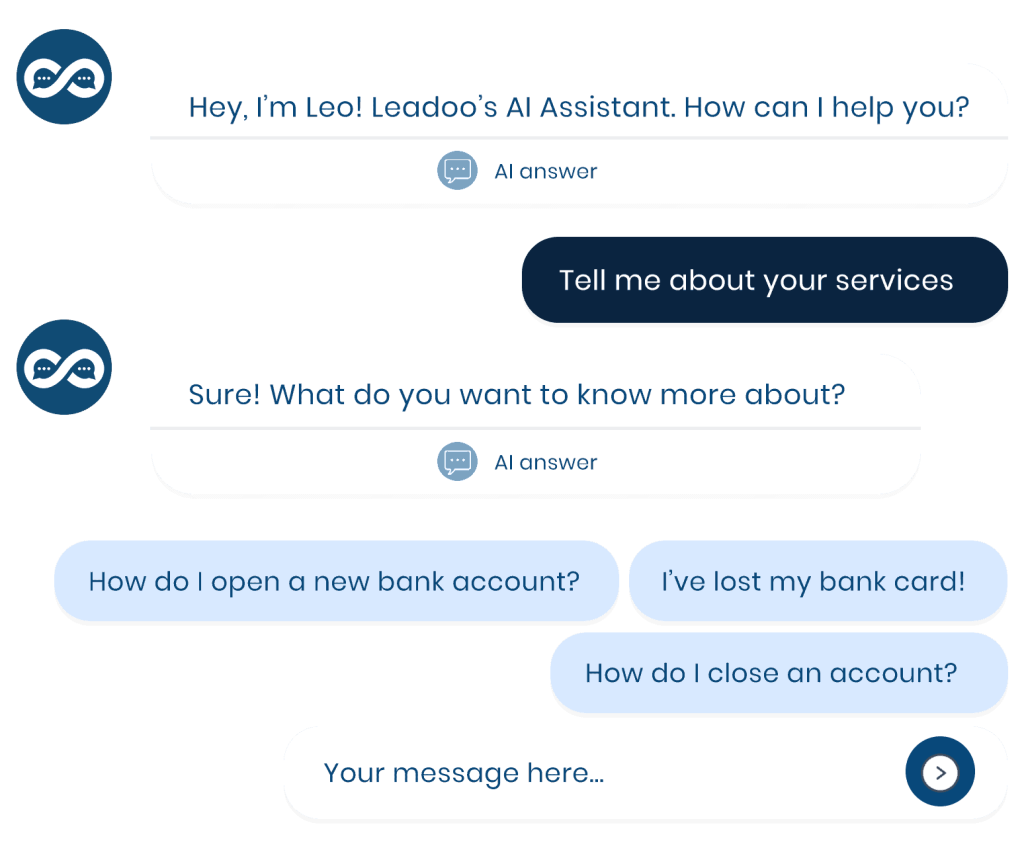
Want to try it out? Discover some of the capabilities here: https://leadoo.com/ai/
Leadoo AI can be easily integrated into your Chatbot and InpageBot flows, just like any other node. Place it strategically where it can make the biggest impact, such as in areas with a broad range of offerings—like training courses—where it’s difficult to predict every possible question. Leadoo AI acts as an expert, guiding visitors through complex queries and driving them toward conversion
It also prevents dead ends by stepping in when predefined options don’t meet a visitor’s needs. Instead of waiting for live support, Leadoo AI instantly provides relevant answers, keeping the conversation flowing seamlessly
*This tool can be used in conjunction with Leadoo AI or with other chatbot functionality.
If Leadoo AI isn’t yet part of your subscription, simply contact your Customer Success Manager to explore how it can benefit your business.
For those already subscribed to Leadoo AI and looking to integrate it into your chatbots, check out the additional articles below for detailed step-by-step guides on building AI functionality into your bots and optimising its potential.
If you’re new to Leadoo AI jump over to this article to give you an overview of what it is and how you can use it in your Leadoo bots – Leadoo AI Overview: Understanding its Features and Integrating with Your Bots
If you’re looking for a step-by-step guide on how to use AI in your Leadoo bots, this is the place to start!
A knowledge base is Leadoo AI’s library of all the information it needs to know to answer your customer queries. This is where you train the AI on all the content and information you think will be most relevant.
You can train the AI using a combination of URLs and documents, and the AI can scan and train on your content in just a few minutes, making setup quick and easy!
Think of your knowledge bases as organised “buckets” of information. If everything is thrown together, it can be tricky for the AI to find the most relevant answers, which can reduce response accuracy. That’s why Leadoo AI gives you the option to create multiple knowledge bases and use them all within one AI node for more precise results.
For instance, if you run an e-commerce business, you might set up separate knowledge bases for “Product Details,” “Shipping & Delivery,” “Returns & Exchanges,” and “Account Help.” This way, customers get responses tailored to their specific needs—whether they’re looking for product specs, order tracking, or account support.
By giving each knowledge base a clear title and description, you make it easy for the AI to understand what information resides in each “bucket.” With this guidance, the AI can quickly search the right knowledge base and deliver accurate, relevant answers to your customers.
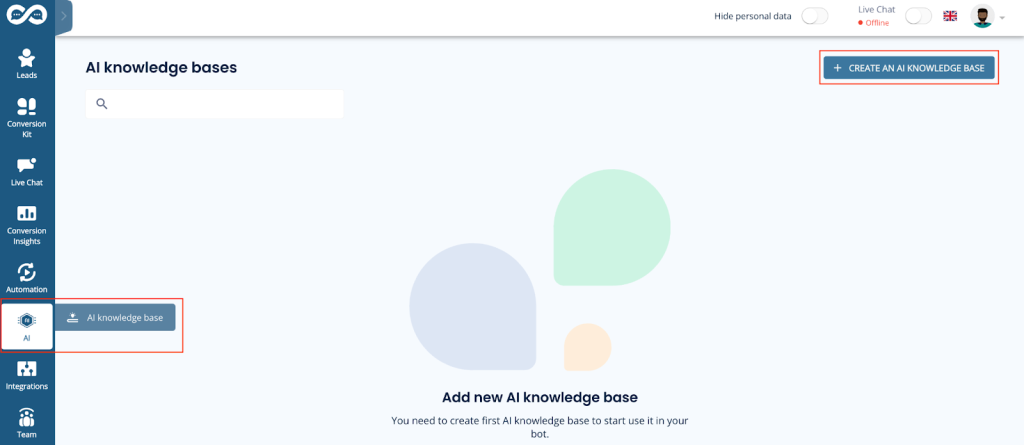
1. Navigate to AI in the left-hand menu, then click Create an AI knowledge base in the top-right corner.
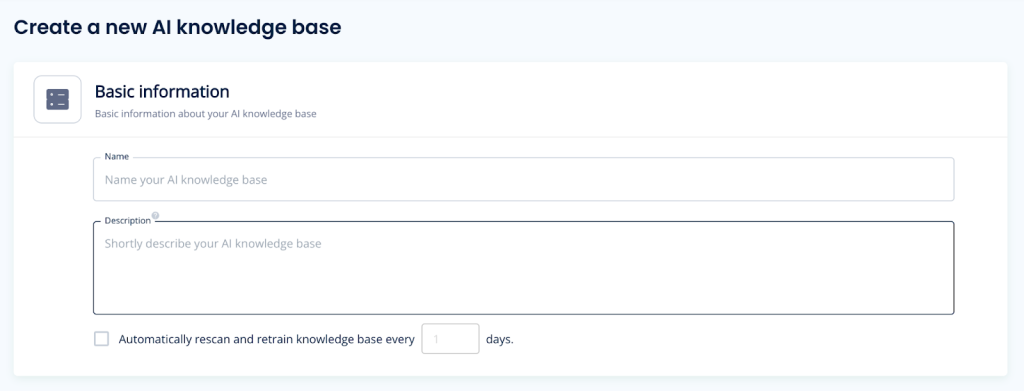
2. Provide a name and description for your knowledge base. If you have multiple knowledge bases, including a clear description is important. Leadoo AI first reviews the descriptions of each knowledge base to determine which one to use to find the answer to the user’s question. After that, it examines the content of the selected knowledge base.
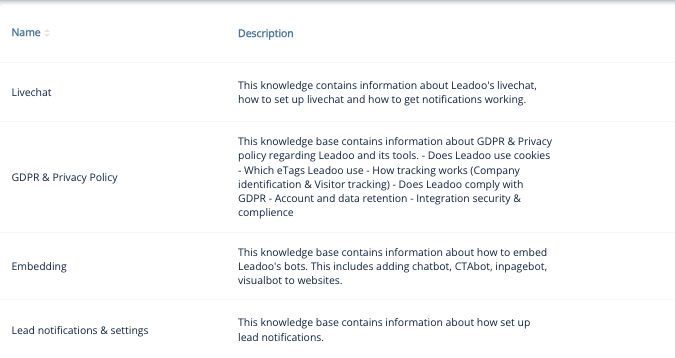
For example, on our knowledge base about embedding, this is the description that accompanies it:
This knowledge base contains information about how to embed Leadoo’s bots. This includes adding chatbot, CTAbot, InpageBot and VisualBot to websites.
3. Choose automatic rescanning frequency. If your website is regularly updated, it’s best practice to enable automatic rescanning to keep the AI’s knowledge fresh.
You can add multiple data sources:
Document Scanning: Useful for content stored outside public web pages, such as PDFs or spreadsheets with product details or FAQs.
Domain Scanning: Automatically search your website by including/excluding specific keywords. This method focuses on relevant content rather than scanning the entire site.
For example, to build a knowledge base on “Leadoo Insights,” set up the search using rules the rules below.
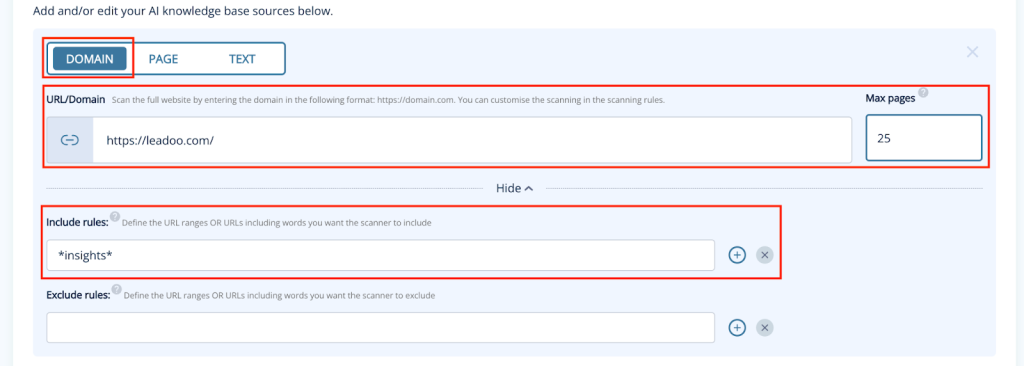
1. Select domain as the source type
2. Add your website URL: https://leadoo.com
3. Include rules: *insights*
The asterisk (*) acts as a wildcard in this case, allowing the crawler to search all URLs on leadoo.com that contain the word “insights” anywhere in the URL, regardless of what comes before or after it. If we only used *insights, the crawler would not include any URLs that had any other text after the word “insights.”
You can add multiple include or exclude rules by clicking on the plus button. This works as an OR condition e.g. scan all pages that include insights or conversion.
4. Select the maximum number of pages you want to scan.
5. Click Scan webpages. After a few minutes, you should see pages populating in the AI knowledge base section below.
Page Scanning: Manually add specific URLs by selecting the “Page” data source.
Text scanning: Manually input text for AI training.
As your data is scanned, sources will show statuses such as Scanning, Ready to Train, or Trained.
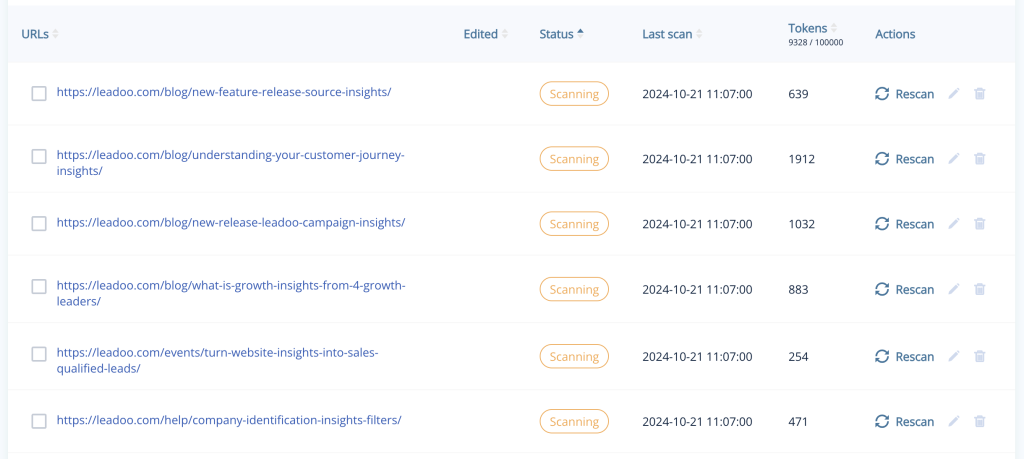
Once trained you can review the content by clicking the status label, which will display the information that has been captured.
If, for any reason, you’re unhappy with the content that the Knowledge Base has scanned and trained you can edit this directly. Simply click on the pencil icon before the page, document etc. This will allow you to make any changes without the need for recanning and training content.
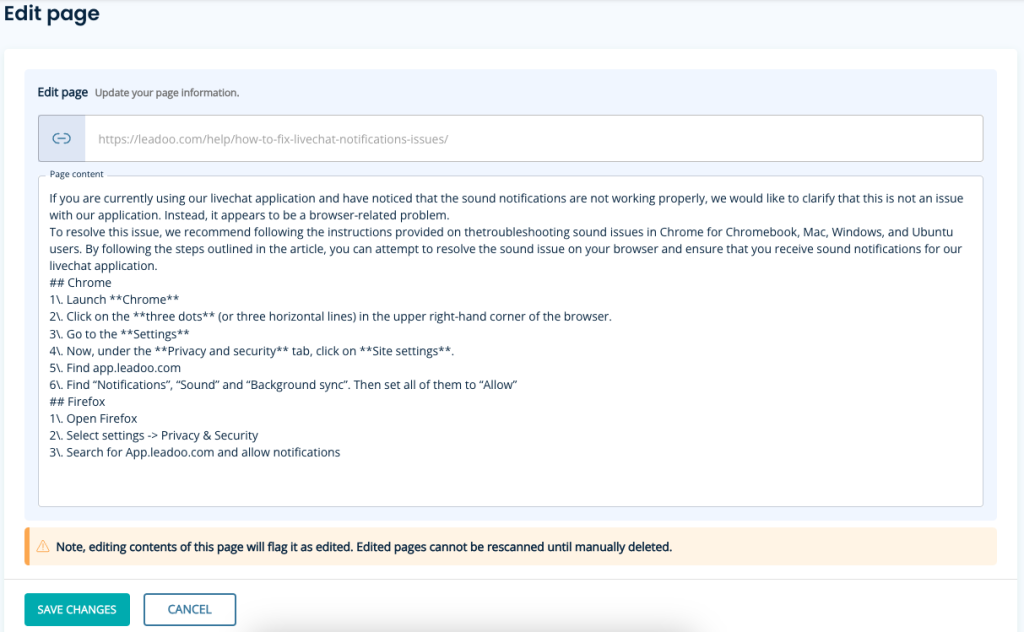
Your knowledge base is now ready to use within your Leadoo bot! Remember you can add and remove sources from a knowledge base at any time.
1. Ensure you’ve adjusted the number of pages to scan
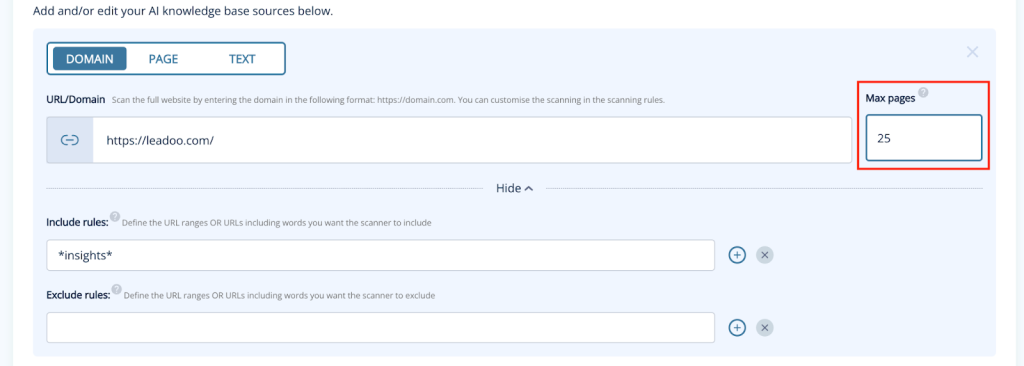
2. Ensure You Have a Public Sitemap
Domain scanning requires your website to have a public sitemap, which is also essential for SEO. To check if you have one, visit: https://[YOUR WEBSITE URL]/robots.txt. If this doesn’t work then contact your website developers for more information.
You should see something like this:
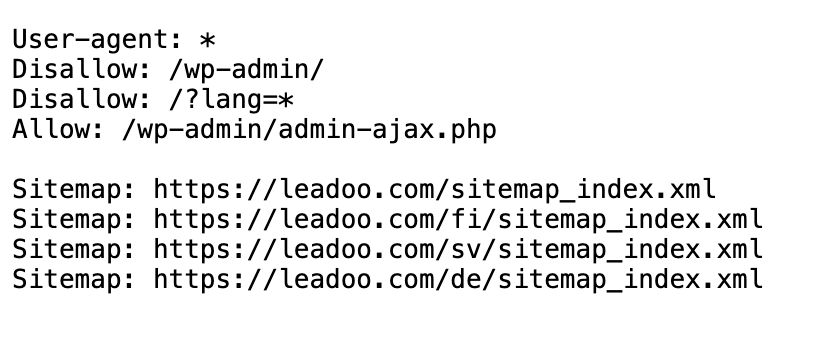
Try rescanning the source. Click the rescan icon on the right-hand side or, tick the box on the left-hand side of the source and click Sync Selected.

Occasionally, Leadoo AI may not capture all the content from your sources. This can occur due to certain webpage elements optimised for page speed or user experience that are incompatible with AI crawlers. These issues can also inadvertently affect your SEO. Understanding these problematic elements can help ensure that essential content remains accessible to the AI.
Elements That Can Cause Problems:
If you need help building your knowledge base, reach out to your Customer Success Manager or our support team at [email protected].
If you’ve already built your knowledge base it’s now time to create your prompt. If you haven’t built your knowledge base yet, refer to these articles first:
Creating the perfect AI chat experience starts with crafting the right prompts. A well-structured prompt can ensure that your AI chatbot delivers accurate, helpful responses that move visitors closer to conversion.
In this article, we’ll cover tips for writing an effective AI system prompt to work in conjunction with the other AI elements including the Knowledge Base, Dynamic Suggestions, Static CTAs, and Custom Intent mapping which we cover in other articles which you can find at the bottom of the page.
If you’re familiar with interacting with an AI chat, a prompt is a question or input that you provide the AI chatbot to get a helpful, relevant response. Whether it’s answering queries about products, guiding users through services, or offering solutions quickly, the prompt sets the conversation in motion.
A system prompt is essentially the brain behind your chatbot’s responses. It defines the rules and guidelines for how the AI should interact with users, ensuring the conversation flows in line with your business goals. This includes the chatbot’s tone of voice, the format of responses, and specific ways to handle frequent queries. By shaping the AI’s behaviour, a thoughtful system prompt can turn a casual conversation into a meaningful engagement that pushes visitors toward action.
Not sure where to start? Use our system prompt template to get started: AI Prompt Template
The ideal length of a prompt is 2k characters with a maximum limit of 4k characters, utilise your doc editor’s word count tool to keep an eye on this.
We’d also recommend keeping a master copy of your prompt on a document so you can easily review, edit and update the prompt within the Leadoo visual bot builder.
You can also build or optimise your prompt with our own GPT here: https://chatgpt.com/g/g-06v43eDwH-prompt-designer
Adding AI to your chatbot is a powerful way to improve user interactions, but it shouldn’t be your only tool for driving conversions. While an AI chat can help answer questions and guide users, it works best as part of a larger strategy to enhance user experience (UX), push people down the funnel, and ultimately convert them.
Your AI chat should complement other features in your bot—such as automated flows and clear call-to-actions (CTAs). AI chat is particularly useful for handling unstructured or complex queries, but for predictable journeys or key conversion points, a more structured flow might be more effective. By combining the strengths of AI and other engagement tools, you can create a seamless user journey that addresses a wide range of customer needs and nudges them closer to conversion.
AI chat isn’t meant to replace your current strategies, but rather to enhance them—giving your visitors instant, relevant information while your other tools keep them on track toward taking action.
To add AI to your bot, open it in the editor and add the AI node to your workspace in the same way you would any other node.
Don’t see the AI node available? You’ll only see this option if you have AI included in your Leadoo subscription. Reach out to your Customer Success Manager to find out how to upgrade.
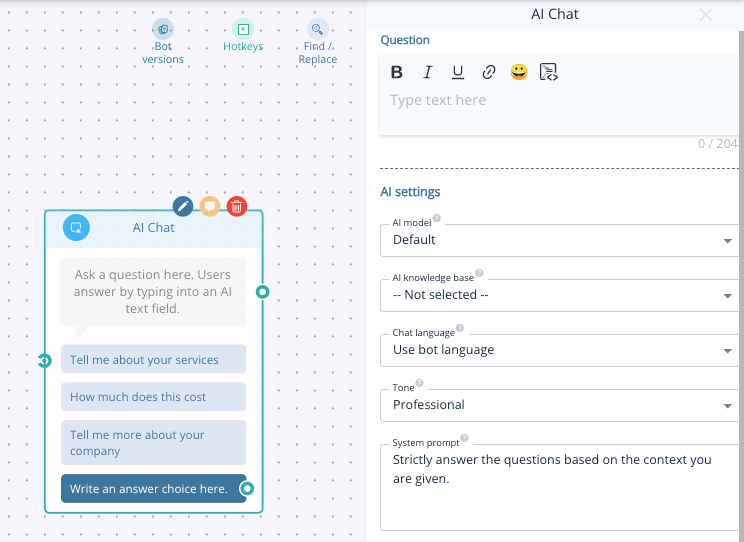
Write an introductory message in the question area.
Select the Knowledge Base(s)
To ensure your website visitors receive the most accurate and relevant responses, we recommend two best practices:
Use knowledge bases at different points in the customer journey to answer questions about specific products or services, and/or
Select multiple knowledge bases for the AI to search across when retrieving information.
By using multiple, targeted knowledge bases with clear names and descriptions, you give Leadoo AI the best possible chance of delivering the right information every time. For more on setting up a knowledge base, plus our top tips, check out this article: Leadoo AI: What is a Knowledge Base and How to Build One | Leadoo – Conversion Platform
Copy and paste your system prompt
You’ll also be able to add some initial suggestions for visitors to ask the bot along with 1 or more static CTA buttons so they don’t get lost in a never-ending AI conversation!
More on that in this article – Leadoo AI: What are Initial and Dynamic Suggestions?
Test your bot!
Use the preview button at the top of the builder to see if the AI is responding in the way you want it to.
Testing is key to fine-tuning your AI chat. Use the preview button in the builder, and stress-test the bot with a wide range of potential questions. For example, a stress test might reveal that the AI struggles to handle complex product queries or misses key FAQs. By getting colleagues involved, you can spot gaps, refine your system prompt, and ensure a consistent user experience.
Fine-tuning your AI chatbot’s system prompt can transform your website interactions and lead to higher conversion rates. If you have any questions or need assistance in setting up or optimising your system prompt, don’t hesitate to reach out to your Customer Success Manager or our Support Team at [email protected] —we’re here to help you succeed!
Initial suggestions are pre-set questions you present to customers when they first engage with Leadoo AI, helping them start the conversation. Think of them as starting points that encourage interaction.
When clicked, the AI answers the selected question, allowing the customer to explore further based on their needs. These suggestions should vary depending on the user’s stage in the journey. When you add an AI node to your bot, a few example suggestions are pre-filled for your convenience, but customisation is key.
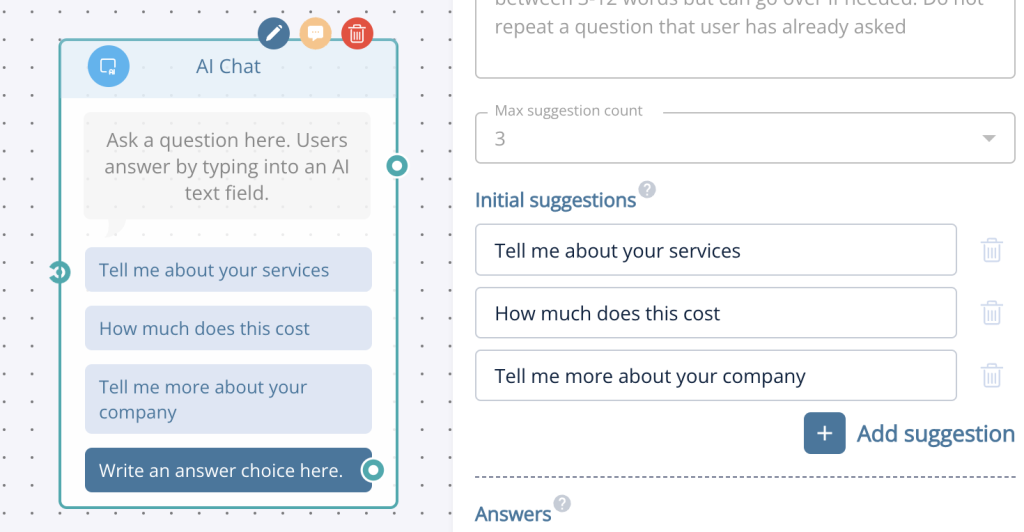
Dynamic suggestions take interaction further by helping customers ask relevant follow-up questions. After each AI response, the system generates possible follow-up queries based on the conversation but not based on the Knowledge Base. This means that the AI chat will not be able to create questions based on content within the Knowledge Base and so occasionally it may offer a suggestion that isn’t 100% relevant to your business. For example, if you’re an online course provider it may create questions for a course that doesn’t exist but could be seen as relevant based on the previous discussion. Let’s say a visitor asks about a marketing course, then it may suggest something like; “Do you offer courses in Creative Writing”
This keeps the dialogue flowing and reveals information the customer may not have initially considered.
However, limit dynamic suggestions to 2-3 options to avoid cluttering the chat window, ensuring the experience remains streamlined and user-friendly.
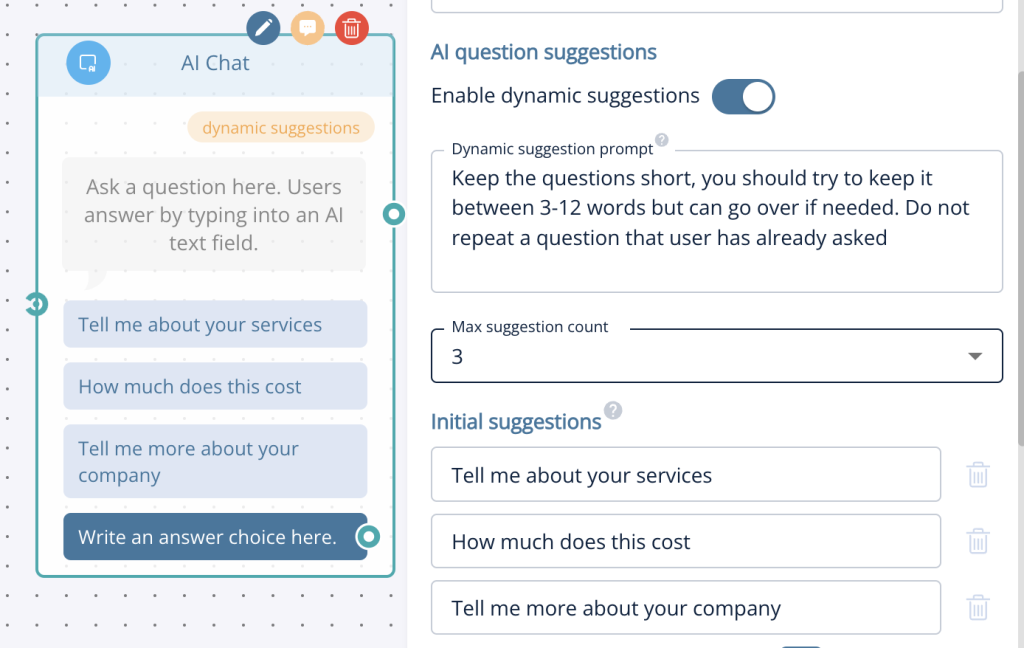
Enable dynamic suggestions by toggling them on in the AI node. When activated, the AI will display suggestions after each response. There is also an additional prompt field where you can guide the AI on how to approach these dynamic suggestions.
Once live, customers will see these suggestions after their initial interaction, which helps maintain an ongoing and engaging conversation.
If you need help building your AI bot reach out to your Customer Success Manager or our support team at [email protected].

