Pricing Get a demo

In this guide, we’ll walk you through the Leadoo dashboard, helping you navigate the essential features of the platform with ease.

To start, here’s a short video on what you’ll find on the dashboard homepage:

Let’s dive into the details!

The Menu

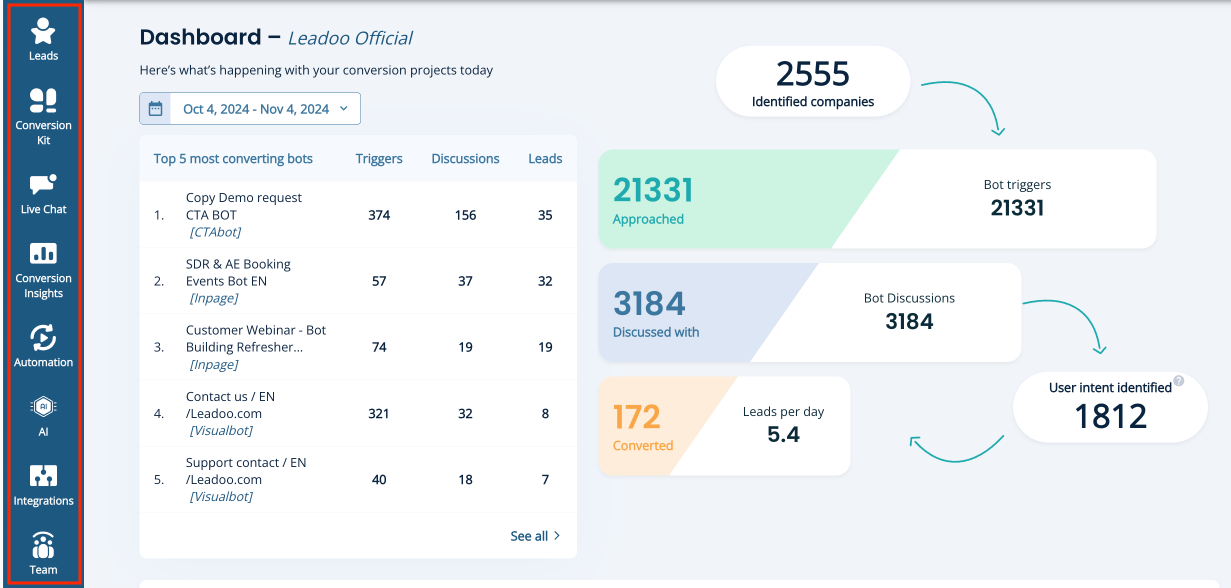
The dashboard menu provides quick access to all the main tools and insights. Here’s what each section offers:

Leads

You’ll receive an email notification each time a lead is captured, and if you’ve integrated with your CRM, a new contact will be created there as well. All leads are stored in this section, where you can view full conversation details and apply filters to locate specific leads.

Conversion Kit

This is where you can find and build all your bots, including:

Conversion Insights

Find key analytics in pre-built dashboards, covering the following:

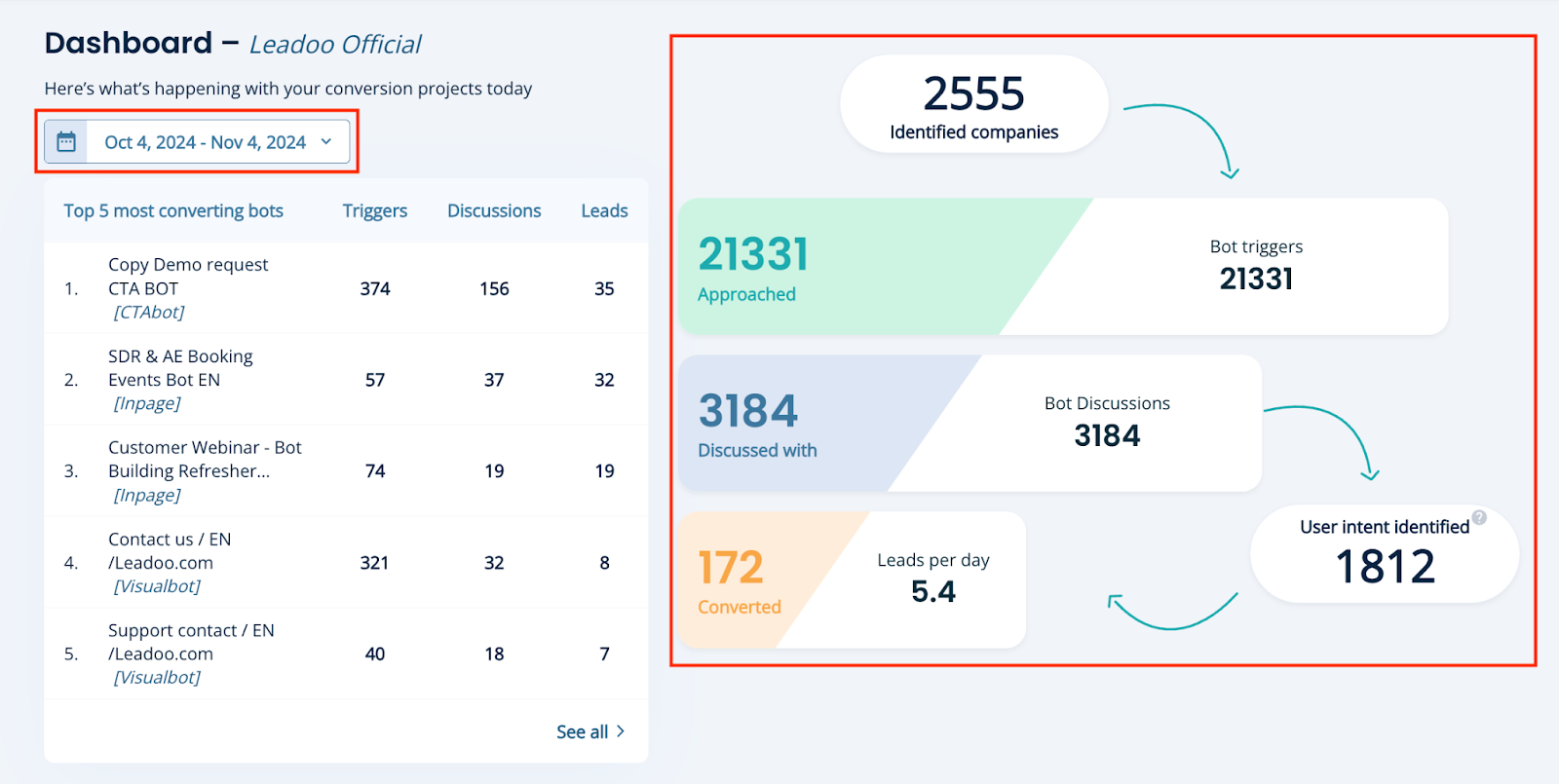
The Conversion Funnel

Bot Triggers
Bot triggers are similar to impressions or page views—this figure represents how often a bot was displayed to website visitors.

Bot Discussions
Consider these engagements. Every time a visitor starts an interaction with a bot, it’s counted as a discussion.

Leads Per Day
This figure is based on the lead criteria set within your bots. For instance, if you’ve set it to require a name and email, a lead is counted once both fields are captured.

Identified Companies
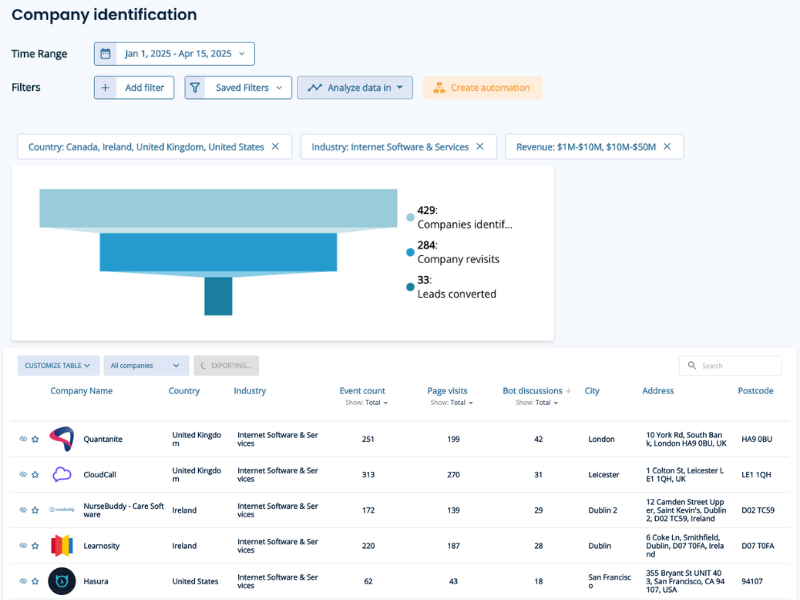
This is based on data captured by the Company Identification tool, which identifies companies that have visited your site. Learn more about it here.

User Intent Identified
This metric shows the number of visitors who have engaged with a bot but have not yet converted—these are your potential future conversions!

You can adjust the date range on the right-hand side to view these metrics over different periods.

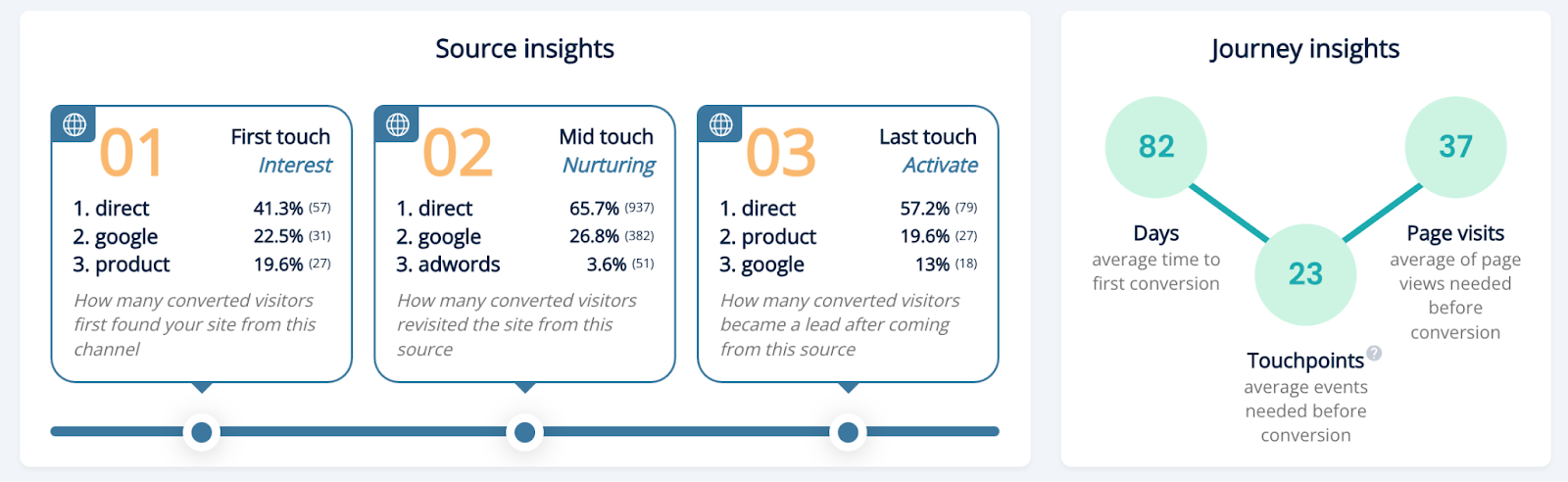
Source Insights & Journey Insights

In the dashboard, you’ll find a snapshot of referral sources for your Leadoo conversions, along with an aggregated view of the customer journey. Delve deeper by filtering data by campaign, URL, or company details such as industry and location. This data is available under Source Insights, included with our Pro & Expert packages or as an add-on with other subscriptions.

For a closer look at Source Insights, watch the following video:

Market Potential: Company Identification

At the bottom of the dashboard, you’ll find a snapshot of companies identified as having visited your site, highlighting key companies that haven’t yet converted. Company Identification is available to all users and provides access to a targeted list of engaged prospects, complete with extensive filters so you can refine your visitor insights.

Learn more about Company Identification here.

Ready for more? Find more videos and guides in our Knowledge Base.

What are Leadoo Sales Alerts?

Leadoo Sales Alerts brings you Company Identification’s incredible insights straight to you without the hassle of logging in. 

Company ID tracks visitor interactions, revealing annual revenue and industry specifics. Dive into a wealth of data, including interactions, conversations, and conversion points, all at your fingertips. Save filters for pinpoint accuracy in identifying the hottest prospects.

Sales Alerts means no more logging in; receiving automatic email notifications with targeted filters in real-time. It’s your shortcut to staying ahead in capturing those hot prospects.

Not familiar with Company Identification yet? Find out all about it here.

Our CPO & Founder Mikael da Costa walks you through it below.

Prefer written steps? Keep scrolling.

Setting up your first Sales Alert

We’ve given you plenty of control to personalise exactly when and how often you can trigger an alert. But, here’s a step-by-step guide to getting started.
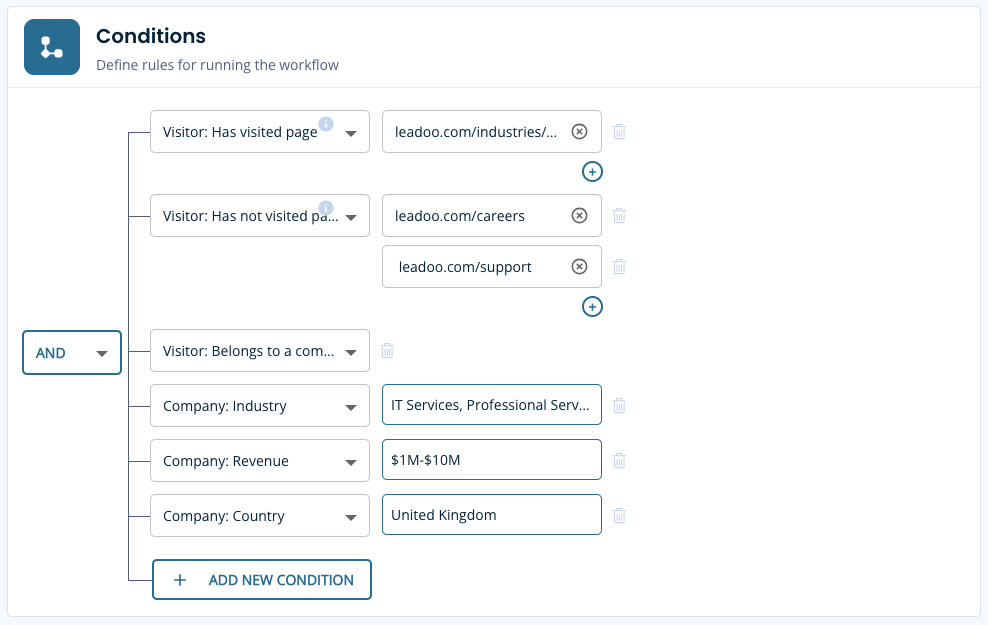
Let’s set up a workflow that alerts you when a company that meets your ICP lands on your site.

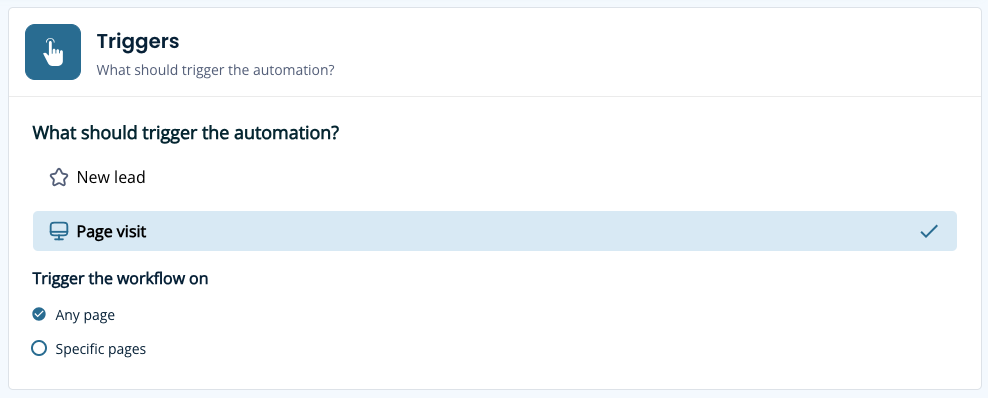
Workflow Setup

Filter criteria

Define conditions based on visitor actions, company industry, revenue and country then, filter this against high-intent pages

Setup the Notification

Create a notification email to any user on your account with ease. Build your email using the earlier conditions as macros for quick reference. Then you’ll be all set to receive timely email alerts whenever a prospect meets your defined conditions.
Here’s an example you can follow:

What if the customer is already a prospect or customer?

That’s where our 2-way integration comes into play and ensures seamless notifications to the right salesperson without unnecessary pings.

To do this you’ll need to have an integration already set up and be able to share additional information with us such as:

You’ll then be able to filter Sales Alert notifications more intelligently and sync the data into the platform like below.

To explore the benefits of 2-way integration, reach out to your Onboarding Manager or Customer Success Manager today.

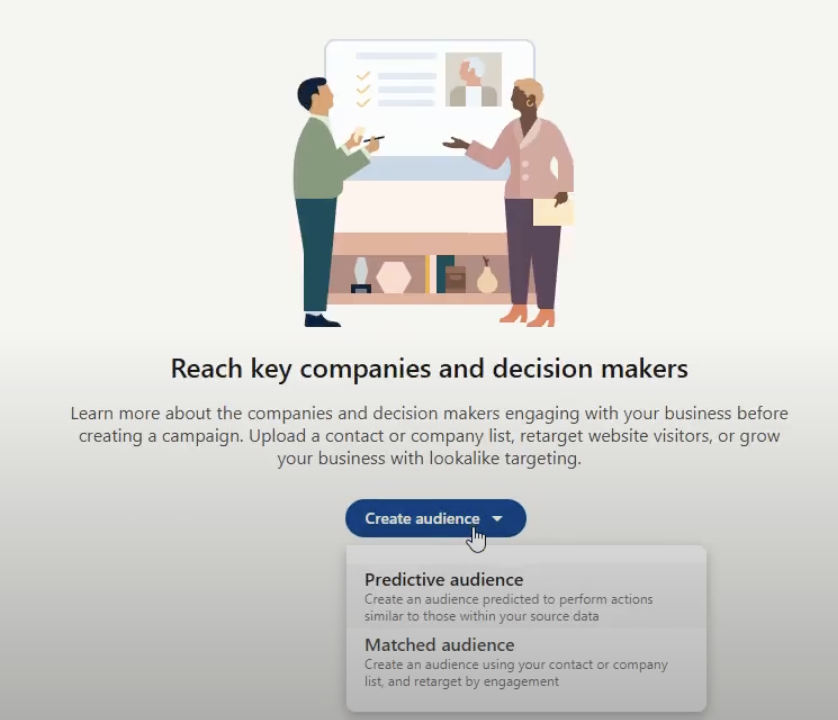
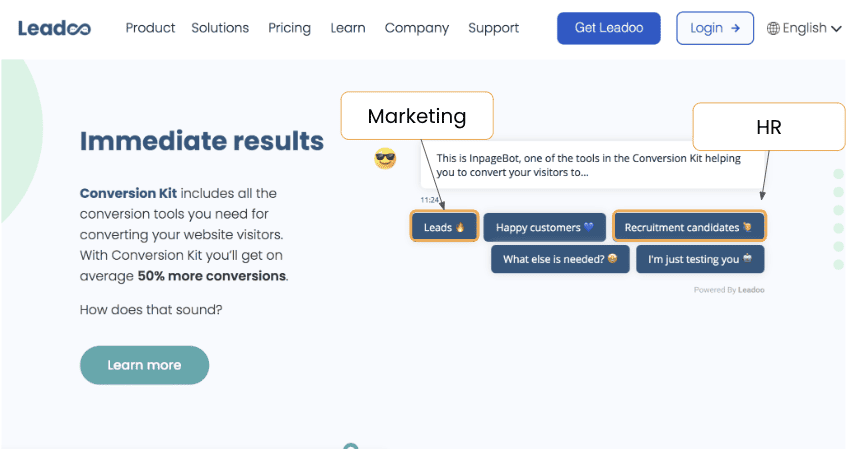
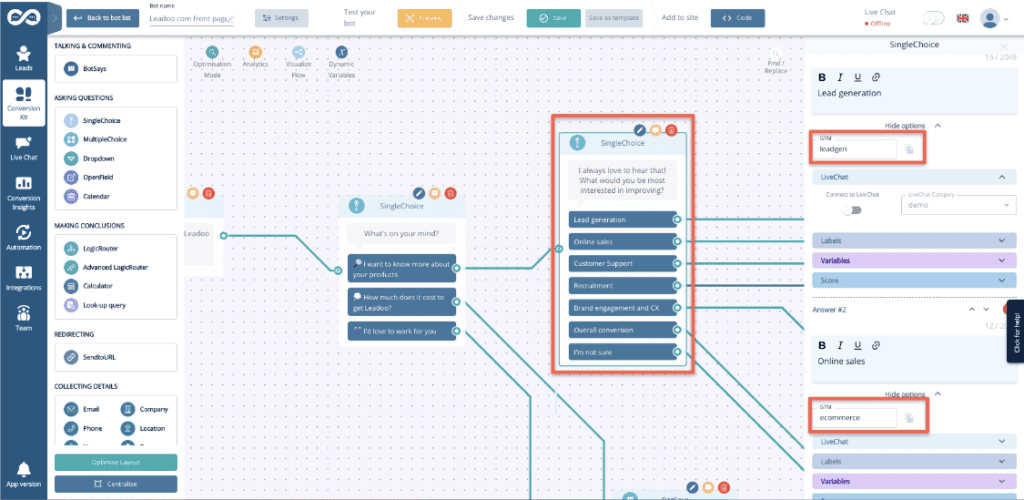
Step 1. Decide what you want to add to your audiences.

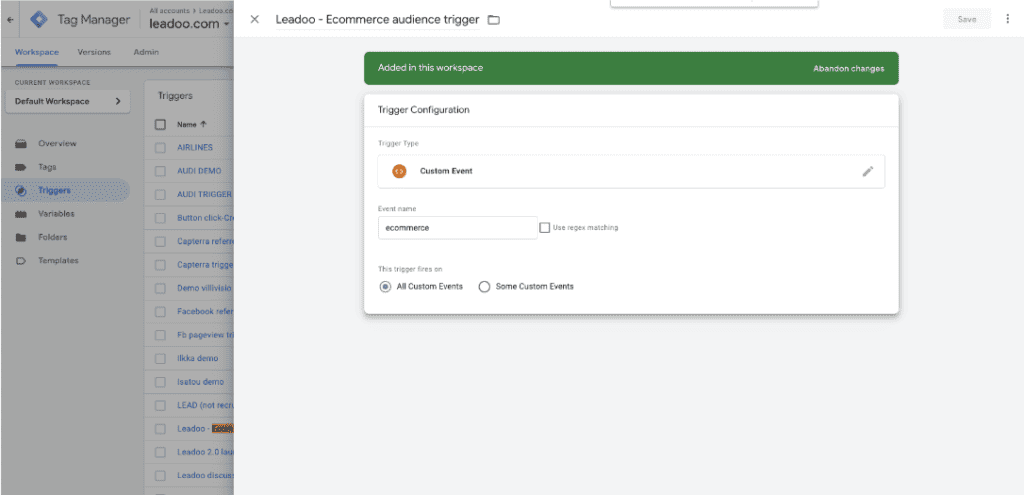
Step 2. Create triggers on GTM


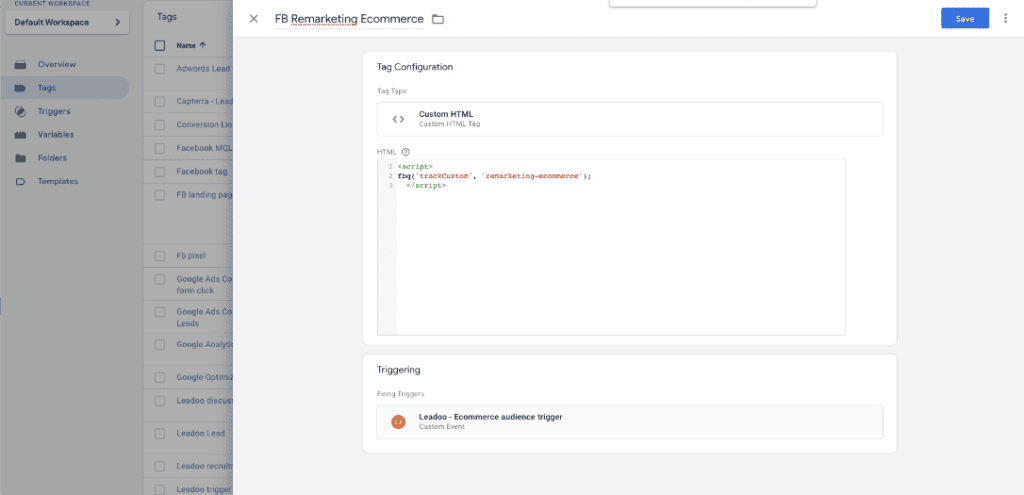
Step 3. Create tags

Facebook: 

<script>

fbq(‘trackCustom’, ‘remarketing-ecommerce’);

  </script>

 ‘remarketing-ecommerce’ <- this part of the script will be the name of the audience on your Ads Manager


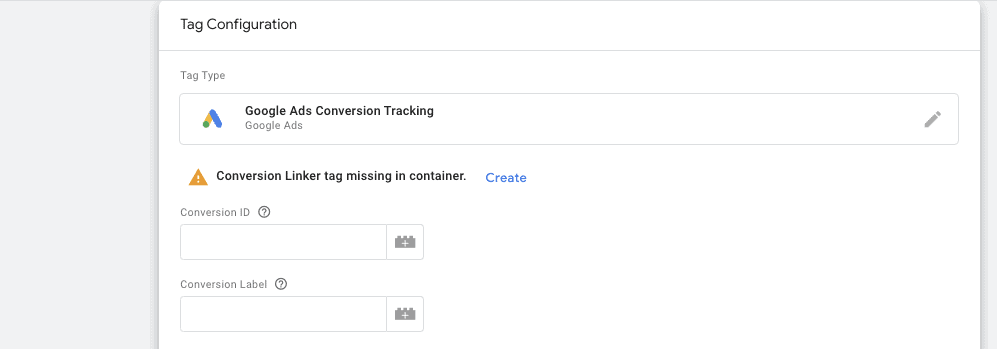
Google Ads: 

How Company Identification works:
Leadoo collects information about visiting companies based on the public IP address of the company. So, the visiting person’s IP address is identified -> checked if it belongs to a company. If it does, the company is shown in the company listing. If it doesn’t, the information isn’t displayed – in either case, the IP address isn’t stored anywhere.

We have a partner company called Clearbit. So, the IP address information goes there and company information comes back from their database. Visitor profiles (if in use) are then linked to these companies either via IP or according to company information given in the bot (i.e., manually filled in the company name into the bot). If there are additional questions / need for clarification, I am happy to answer.

Where Clearbit gets its data:
In short, from public sources. Clearbit probably won’t tell where they get their data but almost all such actors (for example, Leadfeeder in Finland, Lead Forensics in UK) make use of several different sources; they have people who browse the web, they use public data sources, etc. However, it’s important to note that these are not personal data, but Clearbit, Leadfeeder etc. link the company’s IP space to the company’s name and its public information. For example, if Nokia Oy owns the IP space 109.68.1.1-109.68.1.45, then whenever a visitor comes from those addresses, it is recognized that the visitor works at Nokia.

Another important thing is, from Clearbit’s point of view they never know whose sites the visitor has even visited and from your site there never goes a call to Clearbit. All traffic to them goes through Leadoo. So, they don’t know whether the person working at Nokia has visited hs.fi, leadoo.com, or etuovi.fi. They don’t even know about the existence of any of these or any information about the person.

How Visitor Tracking works:
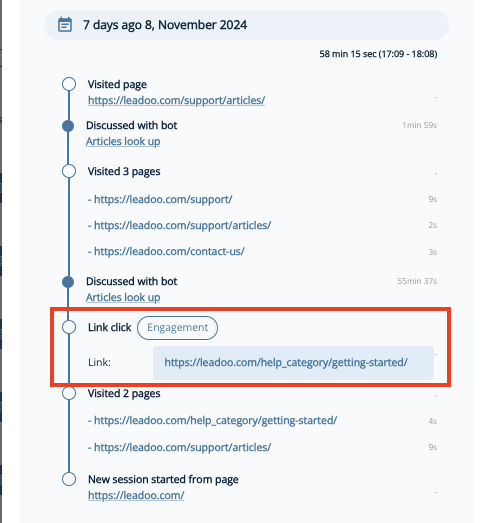
Personal data comes from the information people leave in the bot. Before that, we can “identify” the devices that have been used to visit the sites. These people are “unknown visitors” until they leave their contact details through the bot. Identification is done based on the etag left by the device and browser (works the same way as a cookie, but different technology). So how it works: A person comes to the site -> tracking is on if cookies are accepted -> x device is identified. -> person leaves the site -> an “unknown visitor” profile is created -> The person returns to the site the next day with the same device -> the same etag is recognized, meaning the person visiting with the same device is recognized -> the information from the previous day and new information are combined under the same profile -> person leaves their own information in the bot -> “Unknown visitor” becomes an identified person based on lead information.

Tracking Options:
There is 4 different tracking options you can set up on Leadoo’s control panel.

  1. Always: Add tracking information to all events
  2. CMP: Wait for permission from a TCFv2 compliant Consent Management Platform (CMP) before enabling tracking (disabled before permission). If a CMP is not detected within 5 seconds, enable tracking.
  3. Consent: Wait until the bot is interacted with, and then track
  4. Never: Don’t add tracking information to any event


There is also on options to override user tracking options if you want to only track companies. In that case you would choose “Never track” and in Company tracking you’d choose “Always track”.

If you want to add Leadoo tracking to your cookie acceptance but your CMP isn’t TCFv2 compliant you have to use Custom Consent Handling

How Custom Consent Handling works:
So how this should work is that Leadoo loads two types of scripts in different ways depending on whether the user accepts statistical cookies or not. So if the user does not accept statistics, the bots will load, but the analytics script will not load. As a result of this loading, cookies etc load correctly automatically. Below is how to make this work like this:

Leadoo’s bots can be loaded directly onto the website. However, Leadoo’s tracking can be put behind cookie acceptance. This happens in the following way:
From Leadoo’s tracking settings, the option “never” is activated <- tracking doesn’t automatically start. By default, Leadoo’s settings are ‘always track’, but it can be changed from Leadoo’s control panel. At the same time, the following script is added to your CMP that overrides the “never” rule after cookie acceptance and Leadoo’s tracking starts to work:

if (!window.ldanalytics) window.ldanalytics = [];
window.ldanalytics.push(function(a) {
a.toggleTracking(true, false);
});

More information here: http://docs.leadoo.io/docs/analytics-tracking#custom-consent-handling

And here’s which category each cookie falls into: https://leadoo.com/help/does-leadoo-use-cookies/. But as mentioned, with the way above, they load correctly depending on cookie acceptance.

What is Leadoo Website Analytics?

How to get started?

Leadoo Website Analytics is automatically added to all existing Leadoo subscriptions and it doesn’t cost anything. You can find it from the navigation by clicking “Conversion Insights”.

To view your Leadoo Website Analytics
1. Log into your Leadoo account (free for all existing customers)
2. Make sure to copy the Leadoo dynamic script to your website header if you haven’t already done so
3. Dive into your website analytics!

If you can’t find Leadoo Website Analytics on your Leadoo account, please contact your Customer Success Manager at Leadoo at [email protected] or [email protected]

Additional resources:

New Release: Leadoo Website Analytics: https://leadoo.com/blog/new-release-leadoo-website-analytics/
Custom consent handling: https://docs.leadoo.io/docs/analytics-tracking#custom-consent-handling